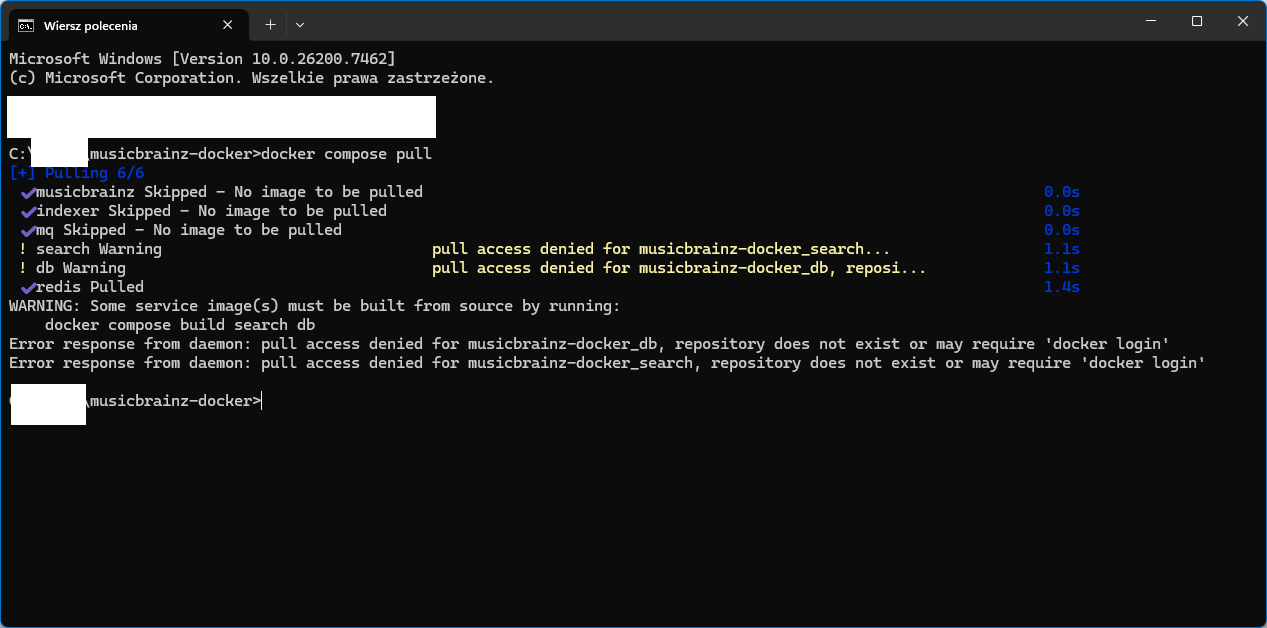
I ran all the commands up to:
docker compose up -d
They all succeeded.
I changed the server address to localhost and port: 80 in Picard.
However, after loading the tracks from Picard, they show red disks and an error with a similar structure:
E: 13:40:07,137 webservice._handle_reply:535: Network request error for https://localhost/ws/2/release/b49898e9-011d-4fc7-856a-45e4007cea2d?inc=aliases%2Bannotation%2Bartist-credits%2Bartist-rels%2Bartists%2Bcollections%2Bdiscids%2Bgenres%2Bisrcs%2Blabels%2Bmedia%2Brecording-level-rels%2Brecording-rels%2Brecordings%2Brelease-group-level-rels%2Brelease-groups%2Brelease-rels%2Bseries-rels%2Burl-rels%2Bwork-level-rels%2Bwork-rels -> Connection refused (QT code 1, HTTP code 0)
E: 13:40:07,137 ui/item.error_append:108: <Album b49898e9-011d-4fc7-856a-45e4007cea2d ''>: Connection refused
You can start checking this part of the documentation :
Customize web server host:port
By default, the web server listens at http://localhost:5000
This can be changed using the two Docker environment variables MUSICBRAINZ_WEB_SERVER_HOST and MUSICBRAINZ_WEB_SERVER_PORT.
This open WWW.
This is a MusicBrainz mirror server. To edit or make changes to the data, please [return to musicbrainz.org](http://musicbrainz.org/).
I have to step away from the computer.
I’ll be back tonight.
Try it in MB Picard with Port 5000
No change. Tick and NoTick “Submit data” no change too.
E: 23:08:13,323 webservice._handle_reply:535: Network request error for http://localhost:5000/ws/2/release/b49898e9-011d-4fc7-856a-45e4007cea2d?inc=aliases%2Bannotation%2Bartist-credits%2Bartist-rels%2Bartists%2Bcollections%2Bdiscids%2Bgenres%2Bisrcs%2Blabels%2Bmedia%2Brecording-level-rels%2Brecording-rels%2Brecordings%2Brelease-group-level-rels%2Brelease-groups%2Brelease-rels%2Bseries-rels%2Burl-rels%2Bwork-level-rels%2Bwork-rels -> Connection refused (QT code 1, HTTP code 0)
E: 23:08:13,323 ui/item.error_append:108: <Album b49898e9-011d-4fc7-856a-45e4007cea2d ''>: Connection refused
OK. Success.
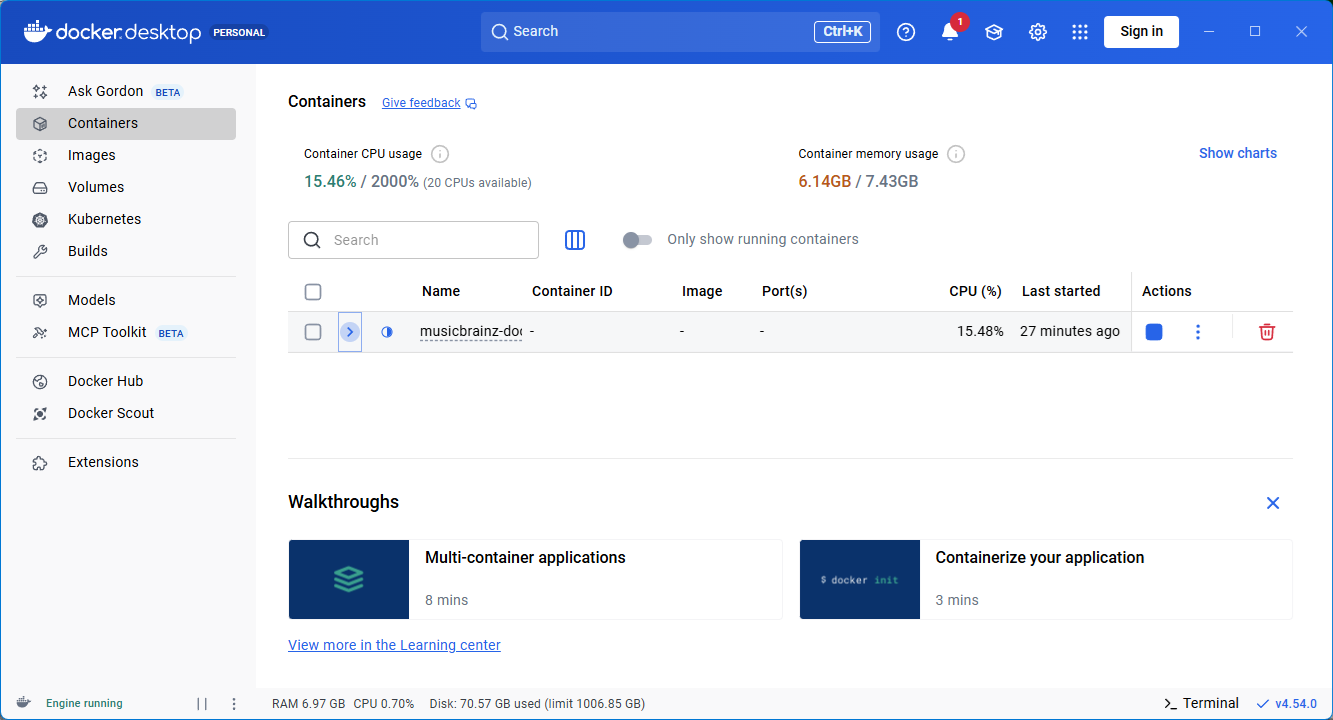
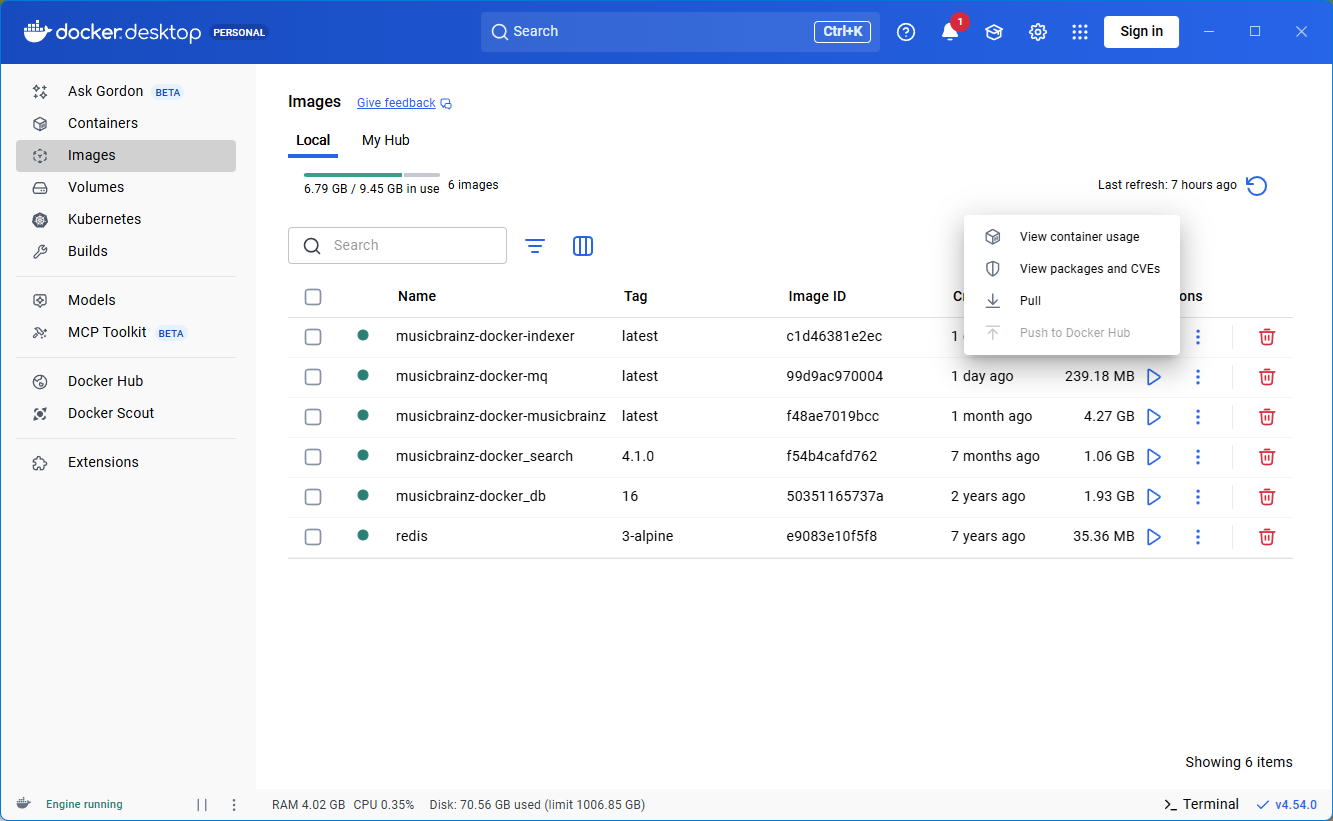
I ran Docker Desktop.
Even Windows 11 Home is enough.
Picard Dev
I didn’t even have to install any Linux.
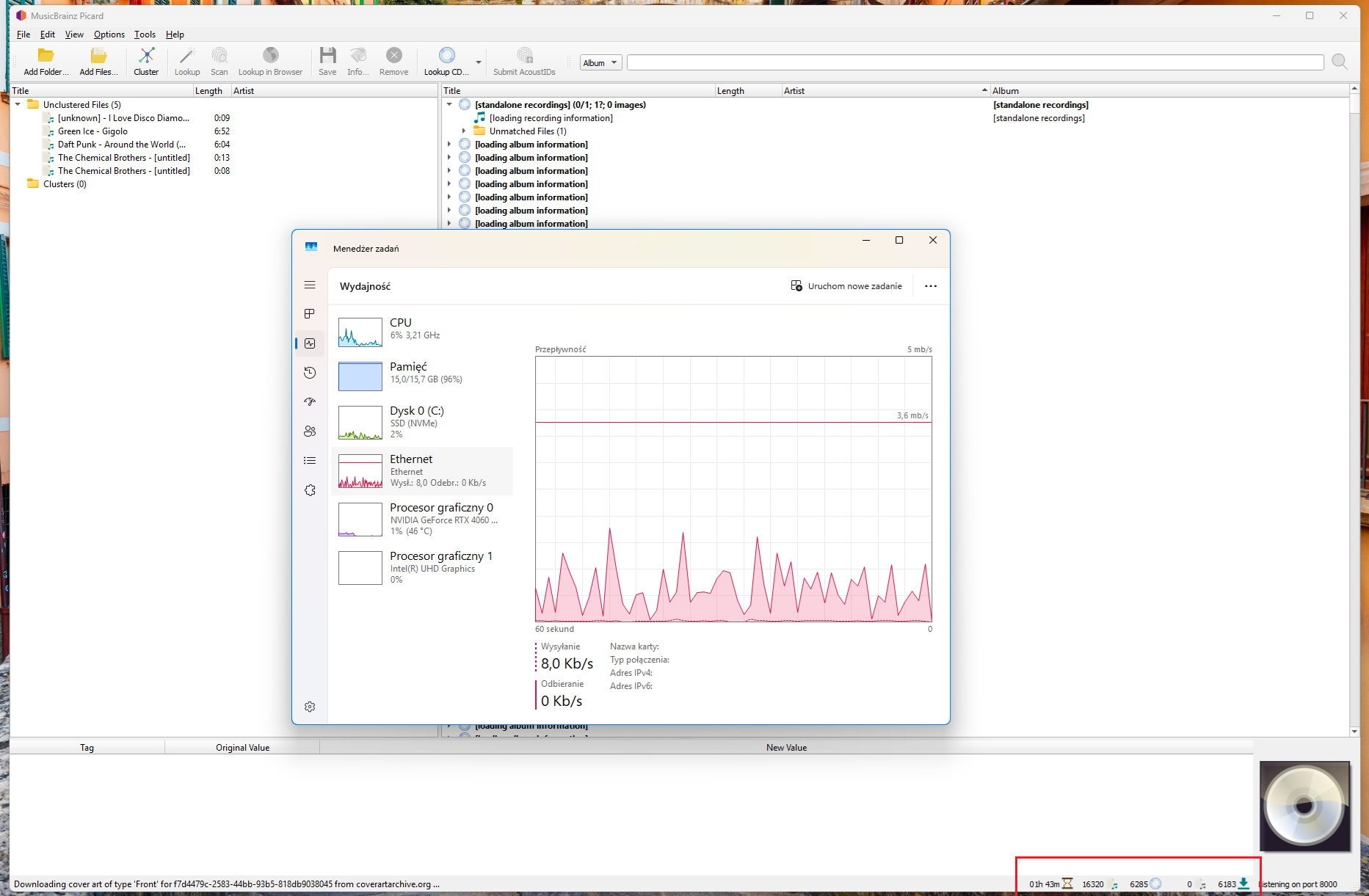
However, Picard’s speed remains unchanged. One request per second. 1h45m remaining. Same as a regular connection.
We still don’t know what you try to achieve.
Do you load 16’320 various songs into MB Picard?
Your songs are not yet tagged?[unknown] - I love Disco Diamond...The Chemical Brothers - [untitled]
And then? What do you use?
From your screenshot we only see that MB Picard is looking for 6285 releases.
Please provide us with much more details about your process and goals.
I’ve already added a tagged collection containing 16,320 songs. There were 6,285 albums identified there.
I just added the catalog.
I haven’t cleaned or scanned it yet.
On the left side of Picard there are files without tags that Scan couldn’t handle previously.
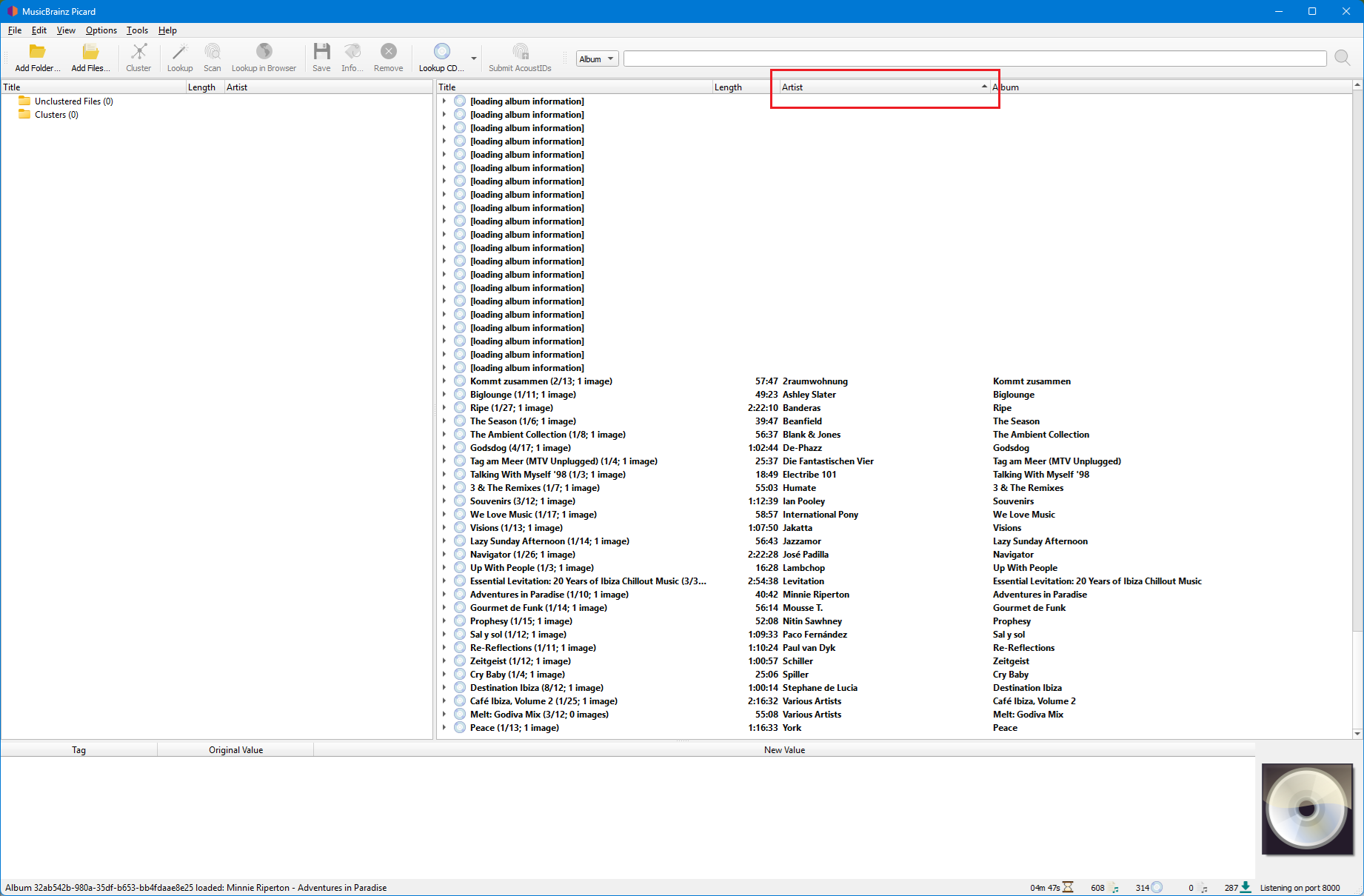
I can just share how the Status bar looks hereCluster Pane ” of MB Picard.
After about 3½ minutes, different Status Icons appear on the right side:
Any tracks that are not automatically found remain on the left-hand side of the “Cluster Pane”.
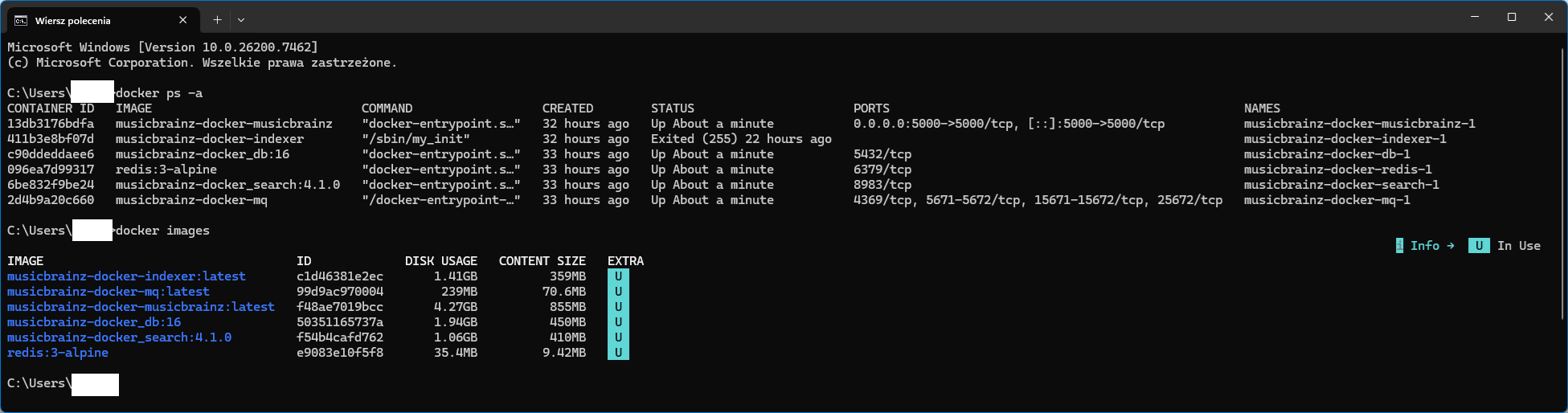
Just to be clear, I use my local Docker server including the SOLR search server from MB and point MB Picard to localhost:5000.
I also executed these three commands:
Yes, it’s the default limit, valid for all requests. There is a workaround by adding a small custom plugin:
I think this should work. Create a file myratecontrol.py (or whatever you want to name it) in the Picard plugin folder with the following content:
PLUGIN_NAME = u'Customize rate control for own MB server'
PLUGIN_VERSION = '0.1'
PLUGIN_API_VERSIONS = ["2.0"]
from picard.webservice import ratecontrol
# Hostname and port of your MB server, 0 is no delay
ratecontrol.set_minimum_delay(('192.168.1.61', 5000), 0)
Restart Picard for this to take affect.
Hostname and port must match what you have configured in Picard’s options, so in your case “localhost” and 5000.
Probably Picard should generally use not rate limit on localhost
This plugin doesn’t help.
I think the problem lies elsewhere.
I just don’t know why.
The coverart is in the tags, after all.
Picard should probably check first if the file has a coverart and then not connect to CAA.
Picard should only connect to CAA when a new coverart exists in the database that is different from the one stored in the file.
or it could be configurable
PICARD-784 Make rate limit configurable when using a private server Type: New Feature
Priority: Normal
1 Like
An efficiency recommendation. Do your scanning and tagging on the first pass with artwork disabled. Once files taqged, make a second slower pass for the artwork.
It is how I have always done it as it speeds the task a up a lot. This way also avoids downloading artwork for miss-matched files. That second slow pass will now only download the artwork it wants.
(I’m not talking of the “only connect to CAA when a new coverart exists ” comment as that on its own would kick a big load in a different way as you’d need to calc some kinda diff to spot changed artwork… a whole different thread\topic)