VZ: MusicBrainz - Show All Entity Data In A Consolidated View With Filtering And Multi-Sorting Capabilities
Userscript for Tampermonkey / Greasemonkey · Works on all major desktop browsers + Firefox/Kiwi on Android
What it does
MusicBrainz paginates most entity lists to 100 rows per page. This userscript fetches all pages in the background, merges them into a single scrollable table, and adds real-time filtering, multi-column sorting, cover art, statistics, and export — without leaving the page.
One click on the action button (e.g.  ¹ Artist RGs) starts the fetch. A live progress bar tracks it. When complete the full dataset is immediately filterable and multi-column sortable with auto- and manual resizable column support.
There are four distinct fetch/render modes, each determined by the structure of the source page:
Mode 1 — Paginated flat list → single-table view
Example pages: Artist Events, Artist Recordings, Label Releases, Recording Releases, Work Recordings, …
The native MB page shows one flat table with 100 rows per page and numbered pagination at the bottom. The script reads the total page count from the pagination bar, then fetches all remaining pages in sequence using native fetch() (same-origin, same cookie session as the active tab). Rows from every page are merged into one flat array, and a single consolidated table is rendered in place of the original.
Native:   Artist Events — Page 1 of 7 (100 rows) [2] [3] [4] … [7]
Script:   Artist Events — (683 rows)  ← one table, fully filter-/sortable
Each row always represents exactly one entity (one event, one recording, etc.). There is only one filter bar and one column-header row. This is single-table mode.
Mode 2 — Paginated multi-category source → multi-table view
Example pages: Artist Release Groups, Artist Releases (with Official / Unofficial split), Release Group Releases, …
The native MB page already has its rows grouped under <h3> section headings (e.g. Album, Single, EP, Live, Compilation, Other), each with its own sub-table on every page. The script fetches all pages — each fetched page contains the same set of section headings — and merges the rows from matching sections across pages together. The result is a set of independent per-category sub-tables, each under its own collapsible <h3> header.
Native (page 1 of 4):           Script (all pages merged):
  h3 Album       (25 rows)        h3 Album       (87 rows)  ← sub-table with own filter/sort
  h3 Single      (25 rows)        h3 Single      (143 rows) ← sub-table with own filter/sort
  h3 EP          (4 rows)         h3 EP          (12 rows)  ← sub-table with own filter/sort
  …                               …
Every sub-table gets its own independent sub-table filter (STF) input, column filters, sort chain, and filter-status display. There is also a shared global filter that narrows all sub-tables simultaneously. This is multi-table mode.
For Artist Release Groups specifically, a pre-fetch pass first determines which release-group categories are present in the “Official” view, and the script merges Official and Non-Official sections of the same name (e.g. two separate “Album” sections) into a single unified sub-table, optionally with a Complete (merged) button.
Mode 3 — Non-paginated multi-section source → multi-table view with overflow buttons
Example pages: Artist Relationships, Label Relationships, Place Performances, Recording Releases (relationship view), …
The native MB page is not paginated — there is only ever one page. Instead, it contains one large table whose rows are grouped under <h3> headings by relationship type (e.g. member of band, collaborates with, produced, remixed). MusicBrainz caps each section at 100 rows and adds a “See all N recordings” link at the bottom of any section that has more. There is no traditional page-N pagination.
The script fetches the single page (maxPage = 1), parses all its sections, and renders them as individual sub-tables under collapsible <h3> headers — exactly as in Mode 2. For any section that was truncated by MB’s 100-row cap, the trailing “See all N rows” link is converted into a styled “Show all N rows” button in that sub-table’s <h3> header line. Clicking that button either navigates to the full paginated list for that relationship type or opens it in a new tab (configurable), where the script will fetch all pages in Mode 1.
Native (1 page, capped):              Script (rendered):
  h3 member of band  (12 rows)          h3 member of band  (12 rows)
  h3 collaborates    (100 rows + link)  h3 collaborates    (100 rows) [Show all 347 rows →]
  h3 produced        (100 rows + link)  h3 produced        (100 rows) [Show all 1,204 rows →]
  …                                     …
The overflow buttons are colour-coded: configurable initial colour (default warm amber) changes to a different colour (default light green) after being clicked, providing a clear visual record of which sections have already been expanded in a separate tab.
Mode 4 — Non-table source pages: <ul> list conversion → single or multi-table view
Example pages: User Tags, Tag Value pages, Artist Credit overview/entity, User Subscribers, Most Popular Tags, …
Several MusicBrainz pages render their data in <ul> lists under <h2> or <h3> headings rather than as <table class="tbl"> elements. The standard fetch/filter/sort pipeline requires actual tables, so the script runs a pre-processing step (applyListToTable) that rewrites the live DOM before the pipeline begins. Seven distinct source-HTML structures (A–G) are recognised and each is converted to <table class="tbl">.
Because the source structure varies so much, these pages produce either a single-table or multi-table result, and may or may not involve pagination.
Support for 72 page types across every major MusicBrainz entity:
| Entity | Supported sub-pages |
|---|---|
| Artist | Release Groups, Releases, Recordings, Works, Events, Aliases, Relationships (incl. filtered link-type pages) |
| Release Group / Release / Recording / Work | Releases, Aliases, Tags, Recordings, Relationships |
| Label / Series / Place / Area / Instrument / Event | All supported sub-tabs |
| Collection | Own & subscribed collections; Release Group sub-tabs with native h3-grouped sub-tables |
| Tag | /tag/<value>, /tag/<value>/<entity>, user tag pages, Most Popular Tags |
| Search | All MB search entity types |
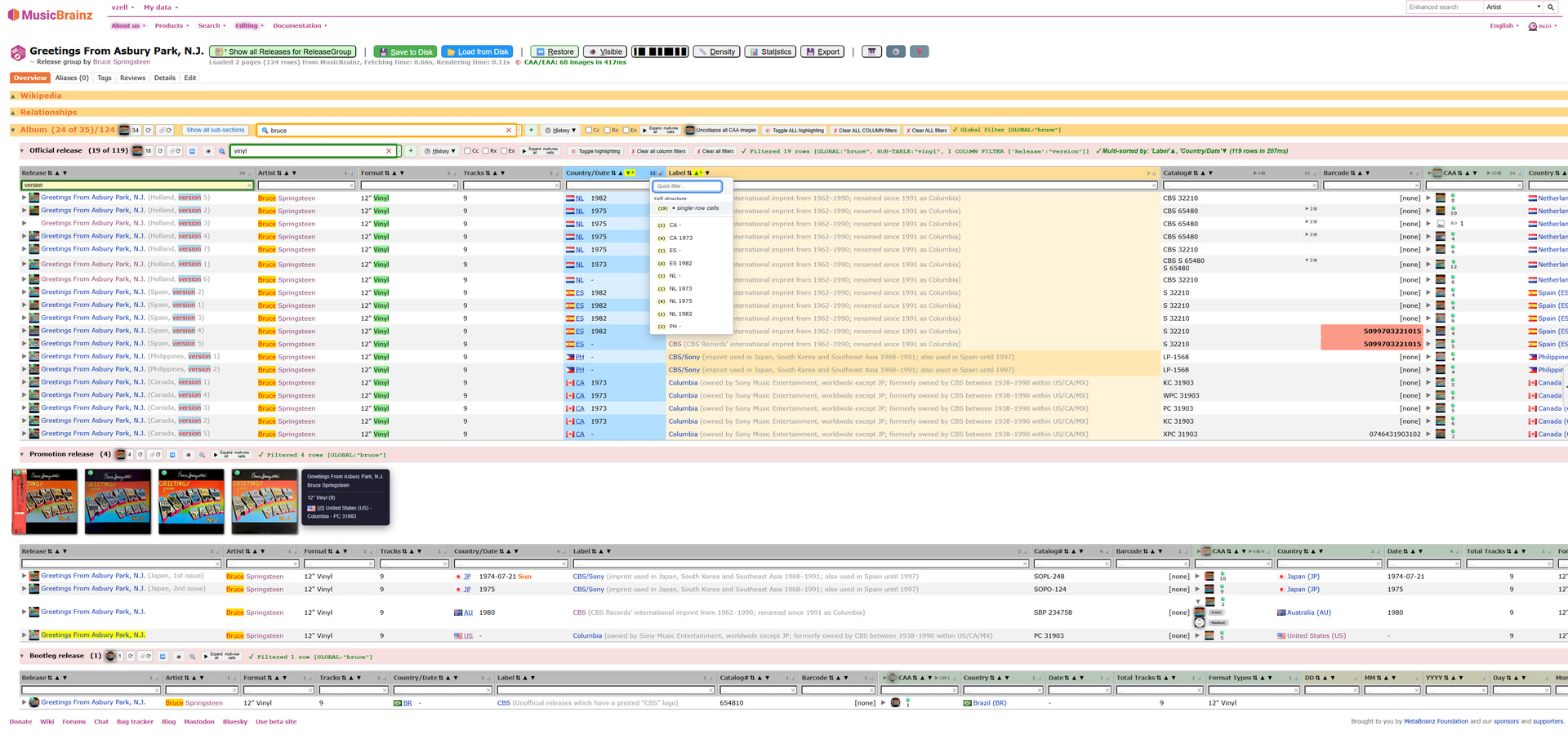
Page section toggle framework
Every <h2> and <h3> heading on the rendered page becomes a collapsible toggle, letting you hide sections you are not interested in without losing your filter/sort state:
- Mouse — click anywhere on the heading text to collapse/expand; the
▶/▼glyph at the start shows the current state - Keyboard —
Ctrl+2collapses/expands all<h2>headings at once;Ctrl+3does the same for all<h3>sub-table headings (both shortcuts are configurable) - Sidebar toggle — a tab handle is injected on the right edge of the MB sidebar. Clicking it collapses the sidebar with a smooth CSS transition and expands the content area to full width, giving wide tables more room. An optional setting starts every page with the sidebar already collapsed.
Core features
Filtering
- Global filter — one input filters every column at once
- Column filters — per-column row beneath the table header
- Sub-table filters — independent inputs per category on multi-table pages (e.g. Artist-Relationships)
- All inputs support plain text · case-sensitive · regexp · exclude-matches (tick Ex to hide matching rows instead of showing them)
- Cross-tag highlighting — matches spanning
<a>,<bdi>,<span>boundaries highlight correctly - Filter status display — live summary per sub-table:
✓ Filtered 19 rows [GLOBAL:"bruce", SUB-TABLE:"vinyl", 1 COLUMN FILTER ['Release':"version"]] - Hidden-match indicator — when a match is inside a collapsed multi-row cell (Label, Catalog#, …) the
▶expand button turns yellow/red as a signal - Clearing filters — dedicated Clear ALL filters and Clear ALL column filters buttons in the header bar;
Ctrl+Shift+Gclears all filters;Shift+Escclears column filters only; pressingEscapeinside any focused filter input first clears that field, then on a second press removes focus; the ✕ button inside each filter input clears that single input  Toggle highlighting — a per-sub-table button temporarily strips filter highlights from the table without re-running the filter; useful for reading cell content that is obscured by highlight colours; the button reappears automatically whenever a filter is active
- Filter history + Pinned Filters — LRU dropdown of recent expressions; permanently pin any expression that never ages out
Sorting
- Click any column header to sort ▲/▼; click ⇅ again to restore original order
- Multi-column sort — Ctrl+Click adds a column to the chain; superscript numbers (¹²³) show priority
- Sort group colorization — each column in the sort chain is tinted in its own hue (amber, sky-blue, mint, mauve, …); within each column the tint alternates between two shades of that hue whenever the cell value changes, making equal-value runs immediately visible without reading every cell
- Async chunked merge-sort with progress indicator for large tables
Cover Art (CAA/EAA)
- Icon column — each cell starts collapsed, showing a count badge (e.g.
▶ 3) indicating the total number of available images; clicking▶expands the cell inline to show every image at thumbnail size; the expand button gains the yellow/red hidden-match indicator when a collapsed cell contains a filter highlight - Big picture strip — horizontal scrollable strip of large images above each sub-table; hovering a strip image highlights the matching table row, and hovering a table row highlights its strip image; per-strip
 toggle
 - Inline thumbnails — 20×20 px thumbnail inside every Release/Title cell; hovering any thumbnail — in the icon column, the big strip, or the inline position — opens a floating full-size popup preview (same size as the strip images, positioned to the right of the cursor or flipped left near the viewport edge)
- Three-tier cache: memory → IndexedDB (configurable TTL) → network
- Cache-hint indicators (
 memory /
  IDB /
IDB /  network /
  unknown) on images and badges
Relationships column
- Asynchronously fetches WS2 relationship data and injects favicon icons into an extra column
- Filter-aware rich tooltip — appears on icon hover only when the active filter matches that cell
- Filter-match highlighting — matching icons receive a coloured border so the match is immediately visible
- 7-day IndexedDB cache with ⟳ retry button
Expand Release Groups
- Inline
 /▼ toggle on every release-group link expands a sub-table of all releases for that RG
 - Each release row gets its own /▼ for track listings
- Every release row receives an inline CAA thumbnail; hovering it opens the same floating full-size popup preview as the main CAA artwork columns
Collapsible multi-row columns
Multi-row cells (Label, Catalog#, …) show only the first value by default with a compact ▶ N ▤ widget in the top-right corner indicating how many values are hidden. Clicking the widget expands all values inline.
- The numeric count in the
▶ N ▤widget is intentionally excluded from filter matching so that it can never produce spurious matches - When a filter is active and a hidden value inside a collapsed cell matches the expression, the
▶ N ▤widget turns yellow with a red glyph — the same visual signal as the CAA expand button — indicating that expanding the cell will reveal matching content - A per-column header button
▶▤/▼▤collapses or expands all cells in that column at once; the sub-table “Expand all” button does the same across the entire sub-table
Pre-filter Load (offline cache)
- Save to Disk — gzip-compressed JSON (~60–80% smaller than plain JSON); filename encodes page type, row count, and timestamp
- Load from Disk — three-phase dialog: Load → Filter → Render; enter a regexp pre-filter before rendering to import only matching rows
- Pre-filtered rows are highlighted with ; toggle on/off with a dedicated button
Column management
 Visible — show/hide any column (Alt+S / Alt+D select/deselect all)
- ↔️ Resize — fits columns to content; acts as a toggle
 Density — Compact / Normal / Comfortable row spacing with live preview
 Export — CSV · JSON · Emacs Org-Mode
Statistics panel ( )
)
- Draggable, resizable overlay with global metrics (row counts, column origins, filter summary, resize state, artwork loading times, memory estimate) and per-sub-table column breakdown
Unique-values dropdown ( in every column header)
- Lists all distinct non-empty values in that column with occurrence counts; click any to apply it as a column filter instantly
- Cell-structure section — below the regular values, a Cell structure group offers structural quick-filters that are not literal cell values:
○ empty cells— rows where this column is empty• single-row cells/▶ collapsed multi-row cells/◀ expanded multi-row cells/▶◀ any multi-row cells— filter by collapse state in columns like Label or Catalog#- On CAA/EAA columns the structural labels are replaced with artwork-presence entries:
✗ no artworkand✓ has artwork— one click shows only releases that have cover art, or only those that don’t
- Relationships column — shows a Relationship icons group listing every distinct favicon/domain present in that column with counts, so you can instantly filter to all rows linked to a specific external service
Picard tagger integration
An optional Picard column can be injected into every rendered table which has a Release column, giving you a one-click send-to-Picard button on every row — no need to open the entity page first.
Export functionality
- Configurable Export to CSV, JSON, Emacs Org-Mode and HTML
Settings ( )
)
- 70+ configurable options across 20+ groups: keyboard shortcuts, colours, CAA sizes, debounce timers, density, column alignment, filter history limits, and more
- Live search field in the Settings dialog
Keyboard shortcuts ( - all configurable)
Direct chords:
| Shortcut | Action |
|---|---|
? or / |
Keyboard shortcuts reference |
Ctrl+K |
Keyboard shortcuts reference (always active) |
Ctrl+G |
Focus global filter |
Ctrl+C |
Focus first column filter (cycles through sub-tables) |
Ctrl+Shift+G |
Clear all filters |
Shift+Esc |
Clear all column filters only |
Ctrl+S |
Save to Disk |
Ctrl+L |
Load from Disk |
Ctrl+E |
Export menu |
Ctrl+R |
Toggle Resize |
Ctrl+D |
Density menu |
Ctrl+V |
Visible columns menu |
Ctrl+I |
Statistics panel |
Ctrl+2 / Ctrl+3 |
Toggle all h2 / h3 headers |
Ctrl+, |
Settings |
Ctrl+U |
Unicode character picker (when a text input is focused) |
Prefix mode (default Ctrl+M, then release, then press):
s Save · l Load · r Resize · v Visible · d Density · i Statistics · e Export · k Shortcuts · , Settings · h Help · o Stop (during fetch) · 1–9 / a–z Action buttons by index
Column-filter-focused shortcuts (active only when a column filter has focus):
Ctrl+↑/↓ Sort asc/desc · Ctrl+# Unsort · Ctrl+O Toggle multi-row collapse · Ctrl+Q Unique-values dropdown · Ctrl+A Toggle CAA/EAA art · Ctrl+R Resize sub-table · Ctrl+V Visible sub-table
Credits
This script builds on, enhances, and integrates functionality from several existing MusicBrainz userscripts. Many thanks to the original authors:
| Userscript | Author | What is used |
|---|---|---|
| mb. SUPER MIND CONTROL Ⅱ X TURBO | jesus2099 | RELEASE_EVENT_COLUMN — displays release dates in label relationships pages |
| mb. FUNKEY ILLUSTRATED RECORDS | jesus2099 | CAA/EAA cover art loading pipeline — small inline icons and large picture strip above tables (CC-BY-NC-SA-4.0 / GPL-3.0-or-later) |
| MusicBrainz: Expand/collapse release groups | Michael Wiencek | Inline /▼ expand/collapse of release groups and track listings (GPL) |
| Display shortcut for relationships on MusicBrainz | Aurelien Mino | Relationship icon shortcuts (favicon links) in the injected Relationships column (GPL) |
| MusicBrainz: Highlight identical barcodes and toggle merge checkboxes | chaban | Barcode highlighting and merge-checkbox toggle applied post-render to the consolidated table (MIT) |
| mb.unicodechars | Smeulf | Ctrl+U Unicode character picker integrated into every filter input field |
| MusicBrainz: add release(group) links from level above | RandomMushroom128 | Release/release-group link injection from artist, label, and series pages (GPL) |
| MusicBrainz Magic Tagger Button | Philipp Wolfer | Picard local-port detection and one-click send-to-Picard tagger buttons (MIT) |
Replacing the old version
An earlier release of this script was announced in the MusicBrainz community forum at:
That old version is now obsolete and must be removed or disabled before installing the new one.
The new script is published under a different internal name (VZ: MusicBrainz — Show All Entity Data In A Consolidated View With Filtering And Multi-Sorting Capabilities). Because Tampermonkey identifies scripts by name, having both installed simultaneously will result in both running on every MB page, causing double action buttons.
To upgrade:
- Open Tampermonkey → Dashboard
- Find the old VZ: MusicBrainz - Accumulate Paginated MusicBrainz Pages With Filtering And Sorting Capabilities entry and click Delete (or disable it)
- Install the new script from the link in the Installation section below
- Reload any open MusicBrainz tabs
Requires Tampermonkey (or compatible userscript manager).
- Install Tampermonkey for your browser
- Click the install link: GitHub — vzell/mb-userscripts
Tested on: Vivaldi, Firefox, Chrome, Opera, Brave, Kiwi Browser/Firefox (Android)
Version
Current: 9.99.587 (2026-05-11)
Recent highlights:
- Fixed fetch on Firefox for Android (Tampermonkey background-context cookie isolation —
GM_xmlhttpRequestreplaced by nativefetch()) - Fixed spurious filter/highlight matches in multi-row cells (Catalog#, Label) — count badge digits no longer participate in cross-tag matching
- Removed unconditional filter-status overwrites from all “Clear filters” buttons
- Full JSDoc audit + HELP file resync
Full changelog in the Tampermonkey menu →  ChangeLog.
Feedback & issues
- Bug reports / feature requests: GitHub Issues
- Questions and discussion welcome here in this thread


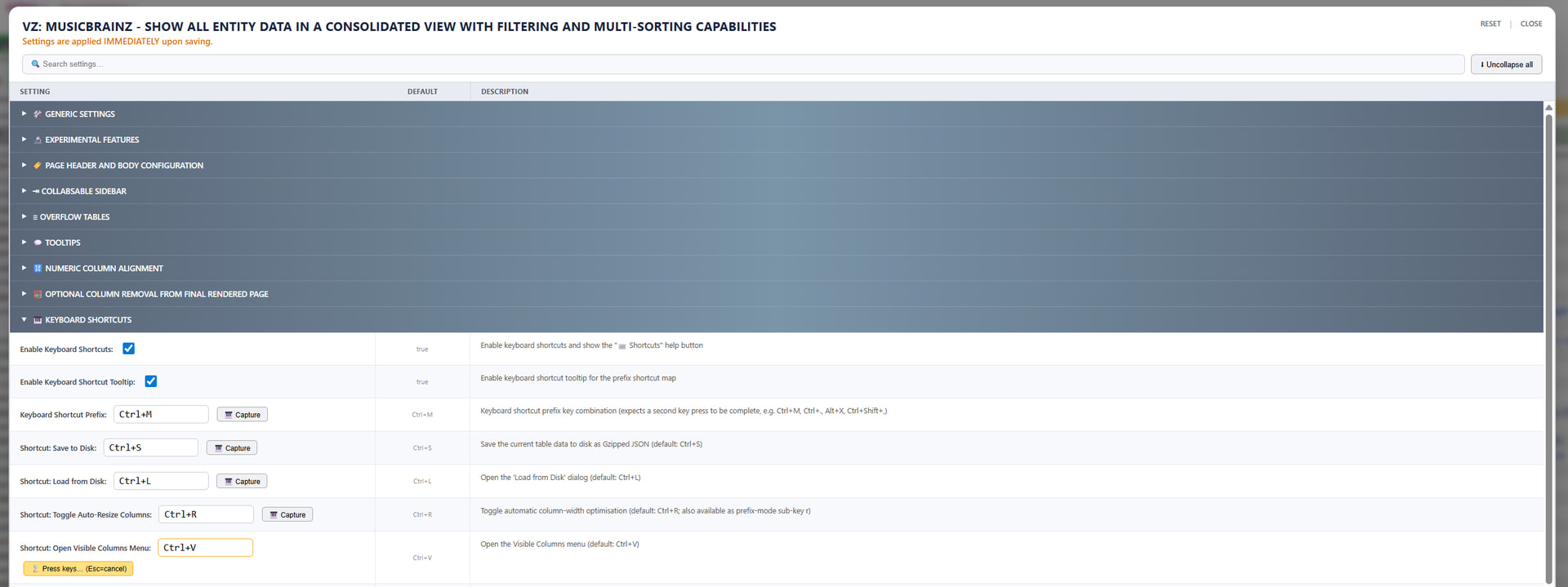

 Save configuration’ button on the lower left
