I’m not sure if I am posting this in the proper place, so if not I apologize.
I am using Version 2.13.3 (no newer versions seem available) and a couple of days ago I started having what I think is a strange development. Capitalization is not being fixed in the tags. To be clear, it looks as though it is on the tagged list. However, in the “New Value” field the words that should, for example, not be capitalized any longer are still capitalized and the file tag on folder reflects this unchanged status.
I’ve tried looking for an option in the “Options” menu that I may have inadvertently clicked, but I’m not even sure what I’d be looking for. Any help would be greatly appreciated.
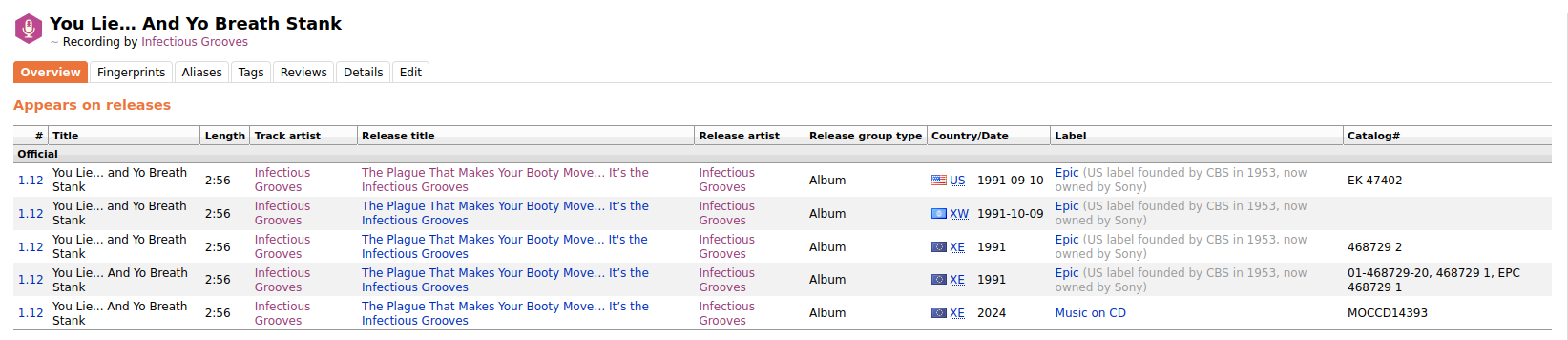
Apologies for not being more explicit in my descriptions, I will do my best to clarify. For example: from the 1991 Infectious Grooves album “The Plague That Makes Your Booty Move… It’s the Infectious Grooves” track #12 “You Lie… and Yo Breath Stank” The “and”in the song title and the “the” in the album title should not be capitalized in English. What is happening is that if these are all capitalized prior to tagging, in the finished tagging field these look correct as it was in the database. However, the “New Value” field still shows them as incorrectly capitalized and this is also true of the file within the hard drive folder. This is happening with song titles, album titles, & artist(s) names. These are the only fields I have noticed this happening because in all honesty I am not very concerned about such things in the other data points.
To the best of my knowledge I am running Version 2.13.3 raw with no altered scripts or additional plug-ins. Sorry if this lacks descriptive improvements.
outsidecontext & IvanDobsky I appreciate you both. Let’s not get caught up on the singular example I used as that was only intended to be illustrative. I am either picking the one in the database that is correct or correcting it myself to ensure it is correct. In the MusicBrainz Picard app itself, the second column shows them as correct/corrected. However, the “New Value” field shows them as incorrect/uncorrected. Furthermore, they are only correct with the file itself if I go through each one individually at a time, which is needlessly tedious.
“The “Title Case” and “Smart Title Case” would do this. Check under Options > Plugins if one of those plugins is enabled.” How can I tell if these are enabled or not? I see nothing that indicates either of them are enabled. To the best of my knowledge I have absolutely zero plugins enabled.
“Maybe you can share a screenshot? What is shown in the panes and the “new value” should usually be the same.”
I am aware that these should be the same, but I assure you they are not.
“Sorry, I don’t understand this. But maybe a screenshot would help here also.“
I don’t know what image to give you here. The files, once tagged, remain unchanged until I go in one-by-one and fix the values. This is outside of app usage entirely.
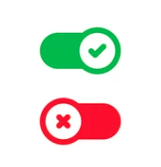
“Active plugins have the on/off icon shown in green.“
Due to an extreme light sensitivity, I require a very robust dark mode for everything. It would seem that I am unable to see any green indications because the program does not fully support the UI specifics I require. FYI, when you post a screenshot all I get is a rather painful eyeful of white. All of the listed plugins in the options menu only have a down arrow. None of the “X” or anything else, only a single arrow for each one listed that points downward.
I am beginning to believe that due to my own visual limitations not being met by the MusicBrainz Picard app I may have to look for an alternate option.
From that description I take that the actual on/off icon is there, which indicates that the plugin is at least downloaded. Even if you can’t see whether it is enabled or not, there is a possible solution: If you see the icon with the “x” you can click it to completely uninstall the plugin. Then it is definitely not active anymore. Restart Picard afterwards and check the loaded data again.
For more details: If a plugin is not downloaded, it only shows the download icon like this:
Once clicked it would install and enable the plugin, which would then show both the uninstall icon and the on/off switch:
We need to improve the UI here and make the enabled / disabled status more obvious and not depend on the color. We will need to create a new UI for plugin management soon anyway, so we can make sure to better indicate enabled / disabled plugins. I think a normal checkbox would work better.
Sorry for that. I replaced the screenshot with a dark mode one.
Thank you for changing that last image. I can definitively conclude that I do not have any of the listed plugins downloaded at all. So, that puts me, it would seem, back to square one.
The screenshot with all of what I’ve been saying. To reiterate for the sake of expediency; I have checked fully to confirm that I have no plugins downloaded, let alone enabled.
So that there is nothing in Options > Scripts we have already checked.
What about Options > Tags > “Preserve these these tags from being cleared or overwritten with MusicBrainz data”? If there is e.g. the title tag here the file’s original value would also be shown as new value, as it would not be changed on save.
The image is rather small, but I can spot “title” in this list. So this would totally explain the situation in your previous screenshot of the main window: Once the track has a title tag Picard would not change it anymore (unless you explicitly change it).
One way to change this is right clicking on one of the tags in the lower tag panel and choose “Add to ‘Preserve Tags’ list”. Most likely it happened that way.
Agreed - since it’s just changing the icon, I could work on it now without too much trouble.
One thing I’m not sure about is making it a checkbox? I think that would be confusing with the cross next to it. I think that cross used to be a rubbish bin icon but iirc it was too hard to see, also leading to accessibility issues
If we have the option to make the buttons wider this could be good: