To “emulate” Windows XP or an old Pentium processor, you use virtualization software like Oracle VirtualBox or PCem. You’ll need a Windows XP ISO file and install the virtualization software on your modern computer, create a virtual machine, and then install Windows XP within that virtual environment, just as you would on a physical machine. For emulating older Pentium processors and specific hardware, a low-level emulator like PCem is used, focusing on replicating vintage PC components.
For Emulating Old Pentium Processors (Hardware Emulation):
Use a Hardware Emulator:
For emulating actual older PC hardware, including specific Pentium CPUs, use a specialized emulator like PCem.
Obtain BIOS Files:
PCem requires you to provide BIOS (Basic Input/Output System) files for the specific PC hardware you want to emulate.
Configure and Use PCem:
Configure the emulator to replicate the desired PC system, including the specific Pentium processor and associated hardware, to run older software or operating systems designed for that hardware.
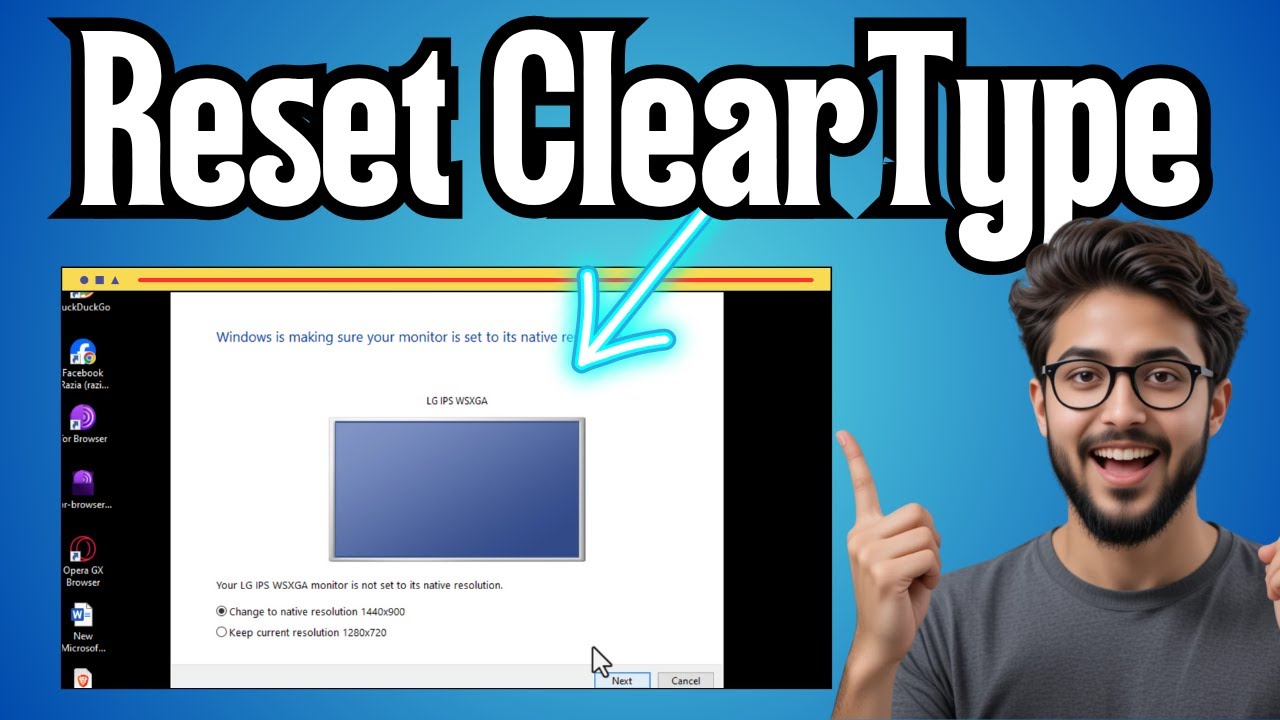
To “clear” TrueType fonts for sharper text in Windows, adjust the ClearType Text Tuner by typing “ClearType” in the Windows search bar and selecting “Adjust ClearType text” to go through the calibration wizard. ClearType is a Microsoft technology that makes TrueType fonts clearer on screen by using pixel-level rendering.
Using the ClearType Text Tuner
Open the tuner:
Click the Windows icon (Start menu) and type “ClearType” into the search bar. Select “Adjust ClearType text” from the results.
Turn on ClearType:
In the ClearType Text Tuner window, ensure the “Turn on ClearType” box is checked.
Follow the prompts:
Click “Next” to begin the process. You will be shown several text samples; select the one that appears clearest to you on your screen.
Complete the calibration:
Continue to the next screens, choosing the best-looking text samples until you reach the “Finish” button.
Adjust for multiple displays:
If you have multiple monitors, you can repeat these steps for each one to ensure consistency.
What ClearType does
Enhances readability:
ClearType is a software technology that improves text readability by making fonts look sharper and smoother on modern displays like LCDs.
Works with TrueType:
It’s a technology that renders TrueType fonts on your screen, not a font itself.
Customized to your display:
The tuner helps your computer adapt ClearType rendering to the specifics of your monitor.
|
|
|
How to Reset or Undo the “Adjust ClearType Text” Setting in Windows:
“God Mode” in Windows
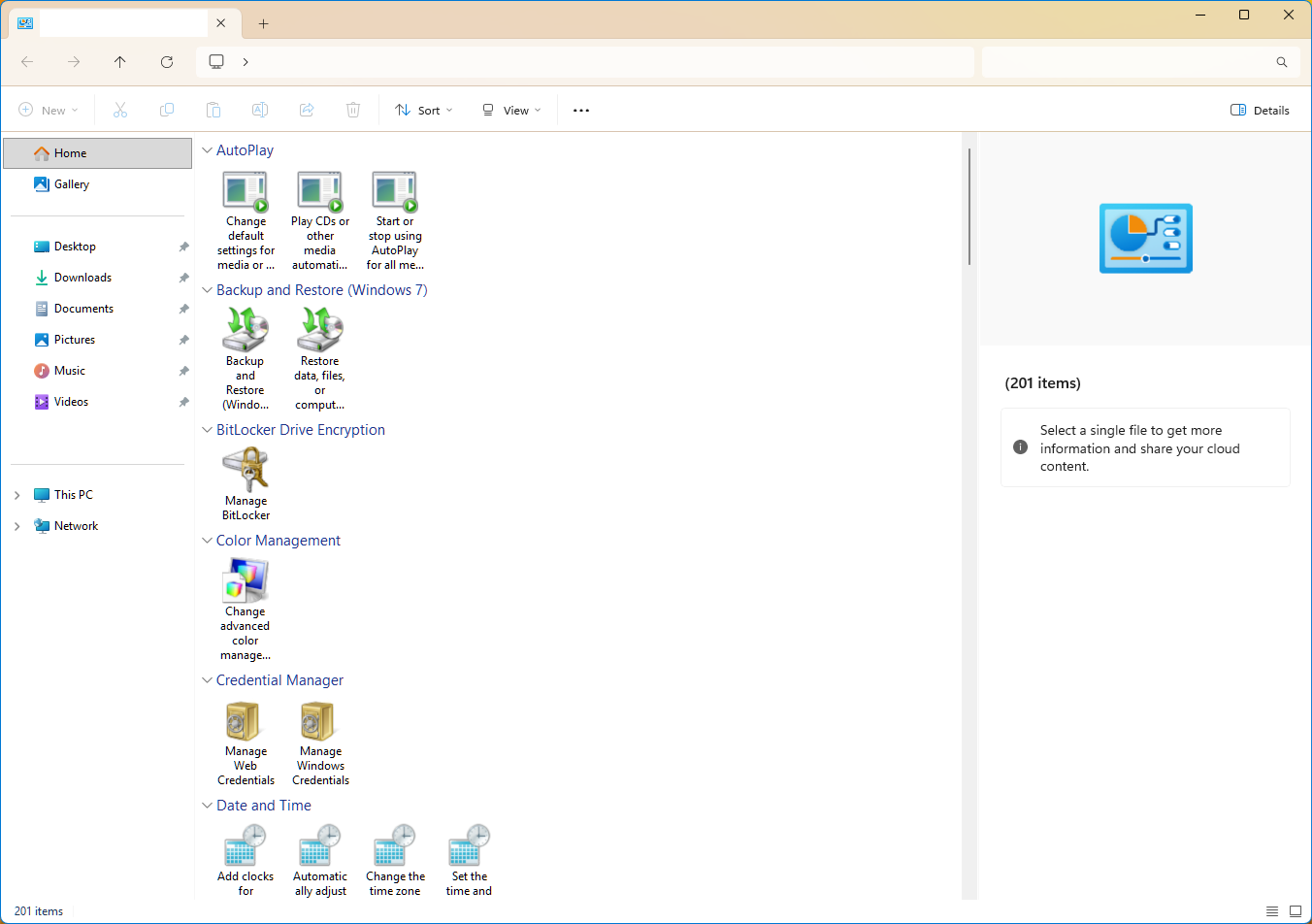
Definition: A special folder that facilitates access to numerous system settings that are normally scattered across the Control Panel.
Activation: To create it:
Right-click on the desktop and select New > Folder.
Rename the created folder to:
GodMode.{ED7BA470-8E54-465E-825C-99712043E01C}
Press Enter. The folder icon will change to the Control Panel icon.
Function: Double-clicking this icon opens a window with all system settings, which is useful for advanced users.
quote
I constantly change Windows 11 settings, tweaking them, so its behavior is less irksome and file management is more efficient, improving my productivity. Making specific changes on Windows often requires too many steps if done through the GUI. But I found Sophia Script (available on GitHub), which lets me fine-tune Windows more easily. It’s a PowerShell module that allows you to fine-tune Windows from the CLI.
The module boasts over 150 functions and is regularly updated. While it runs from the CLI, after getting it running, you are presented with GUI-based options for setting up scheduled tasks (which take forever), managing telemetry settings, properly uninstalling OneDrive, and more. When you click a box to schedule tasks, you can select multiple, and it will do it for you. That saves me a ton of time and makes me more productive.
quote
Yes, but a laptop (which usually has a low grade sound board) plus a USB
DAC (for when you want to listen to music from your laptop) will have a
completely different usage and different power needs when compared to a
desktop (don’t forget to take the external monitor into account). Plus
the fact that when you change your laptop (to upgrade it or because it
broke down), you don’t have to change your USB DAC. Which combination
wins, USB DAC + low power usage or good quality sound board + high power
usage? I am unable to answer to this question.
Yes, it’s difficult, yet easy at the same time.
A laptop has a 100W power supply, a desktop has a 300W power supply. From an environmental perspective, the choice is easy.
However, when playing computer games, the performance of the graphics card (the same model) and the computer in general is also three times lower.