Hi everyone, I’m a tech hobbyist from Germany and long-time MusicBrainz user, and this is my first post here.
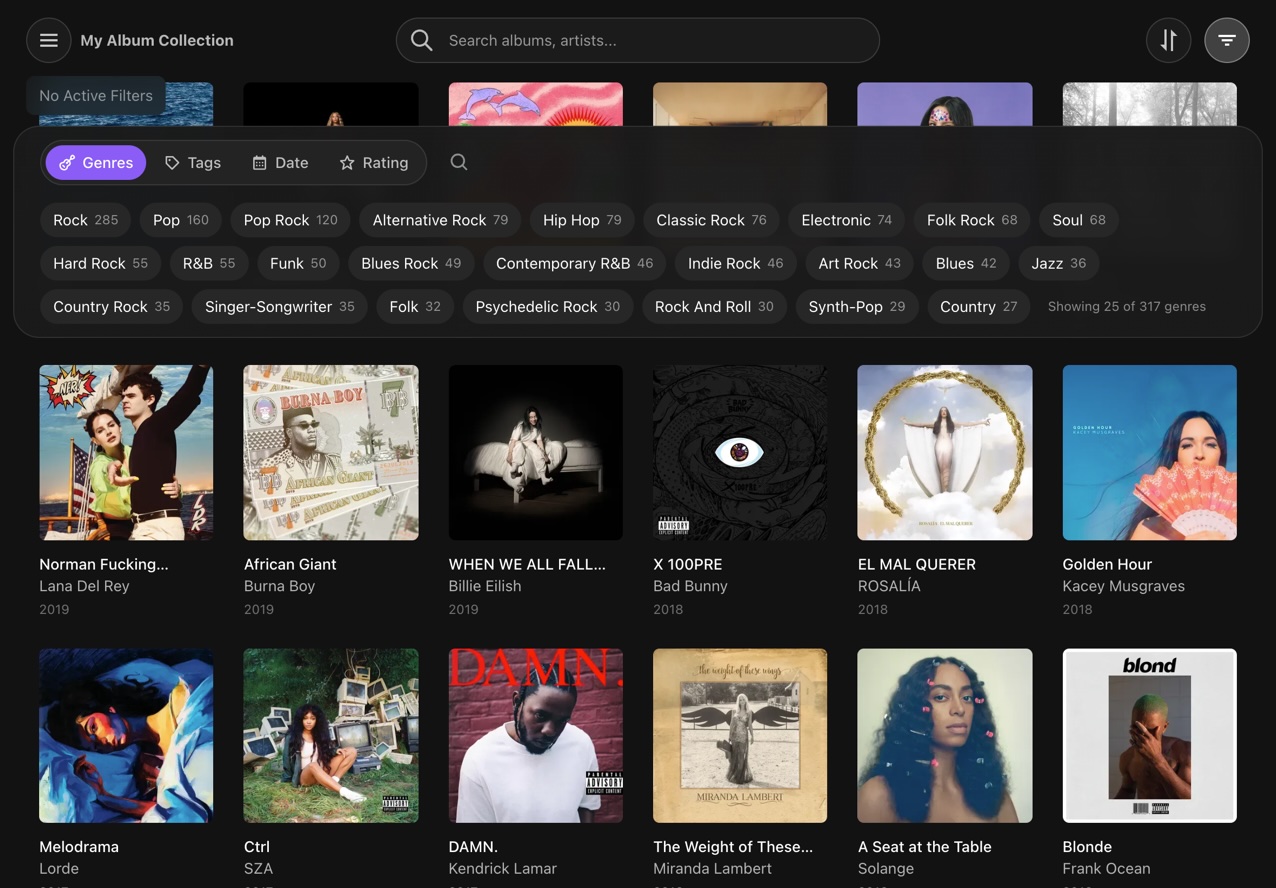
I’ve been using MusicBrainz to manage my music library independently of streaming services, and it’s been great for that. But once my collection grew to 1,000+ release-groups, I found it hard to actually browse and discover what’s in there. I wanted to do things like “show me all jazz albums from the 80s” or “filter by rating”.
So I built a collection browser that works with any public release-group collection or series (like the Rolling Stone 500). It also supports OAuth login so you can browse your private collections.
What it does:
- Filter by genres, tags, release year, and ratings (with AND/OR logic)
- Streaming links to Spotify, Apple Music, Tidal, and more via Odesli/Songlink
- Works with both release-group collections and series
- Dark theme with an album grid view
Demo video: https://youtu.be/U05FlKF24Tc
GitHub (open source): GitHub - tmdecker/collection-browser-for-musicbrainz: Next.js-powered collection browser with advanced filtering and streaming integration for MusicBrainz as web application (formerly MusicBrainz-GUI)
It’s a self-hosted Next.js app: You clone the repo and run it locally. No public instance at this time.
I’d love to hear your thoughts, especially if you manage large collections and have run into similar frustrations. Feature suggestions are also very welcome. I’m considering adding support for release collections next.
13 Likes
Hi, I’m trying to install it on Windows 11. I did install Docker, Node.js + npm (and chocolatey).
How do I set environment variables on Windows 11?
Hi! I haven’t tested it on windows myself, but here is how it should work:
Navigate to your project folder
-
Copy the file .env.example and rename it to .env.local
-
Right-click → “Open with” → Notepad (or VS Code)
-
Then edit the file with your values (For OAuth to work, you need to register your app here Log in - MusicBrainz, if you haven’t done so already, and use the same values this file)
# Required: Application identification for MusicBrainz API (no app registration needed)
NEXT_PUBLIC_MUSICBRAINZ_APP_NAME=Your-AppName
NEXT_PUBLIC_MUSICBRAINZ_CONTACT_EMAIL=your.email@example.com

# OAuth2 Configuration (Optional - only required for personal collections access)
MUSICBRAINZ_OAUTH_CLIENT_ID=your_client_id_here
MUSICBRAINZ_OAUTH_CLIENT_SECRET=your_client_secret_here
MUSICBRAINZ_OAUTH_REDIRECT_URI=http://localhost:3000/api/auth/callback
After creating .env.local, run:
npm install
npm run dev
Hope, this helps.
2 Likes
Wow - what the heck it happening today? That is two different projects appearing at the same time that make MusicBrainz look so pretty and accessible.
Now what I need to work out is how to link your gorgeous looking project into my KODI database where my music lives.
4 Likes
Hi,
I stumbled upon this post because I was searching for an app that could manage my “library” independent from specific streaming services as well. I’ve considered using MusicBrainz Collections, but so far usability and looks have discouraged me from going this route. I will check out your app.
Slightly off topic: Would you be willing to share how you sync your streaming library with MB collections? Are you doing this manually?
My ideal app would let me manage my library independently from any format. I could add a release group, link my local FLAC files if available, tag if I owned the release on CD/vinyl and make a Spotify link available… I don’t think that this software exists at the moment.
Hi Morty,
Your app idea sounds great and is essentially what I am aiming for as well. My approach was starting the app as a viewer only to keep things simple. Management of the library still needs to be done using the MusicBrainz web interface. Making edits in the MB database via the api requires a bit more development work and needs to be tested more thoroughly.
To answer your question about syncing the streaming libraries with MB: I wrote a simple Python script to make the initial sync, but from there on I added new releases manually. This was mainly because I was too lazy modifying the script for regular updates and I don’t mind some clicks. But essentially this can be achieved without too much effort.
Unfortunately, I currently don’t have so much time to continue development, because my regular job and life is keeping me busy. But to be real: I think that AI coding agents are already able to code such a software solution you are imagining. The most challenging bit is probably the streaming links. Unfortunately, they often change over time so you would either need to rely on third party services like Songlink/Odesly or retrieve the streaming links yourself. Depending on the streaming service, this can be challenging. Some have very good api support, but others don’t have any or are making things more and more restrictive for developers (Spotify!).