Picard will not open GUI, shows up in Task Manager

Title says it all. When trying to run normally nothing shows up only on task manager. When I run through console with load until a certain point:

“C:\Program Files\MusicBrainz Picard>D: 08:54:58,293 tagger.init:315: Starting Picard from ‘C:\Program Files\MusicBrainz Picard\picard\tagger.pyc’
D: 08:54:58,294 tagger.init:316: Platform: Windows-10-10.0.26200-SP0 CPython 3.8.10
D: 08:54:58,295 tagger.init:318: Versions: Picard 2.13.3, Python 3.8.10, PyQt 5.15.11, Qt 5.15.2, Mutagen 1.47.0, Discid discid 1.2.0, libdiscid 0.6.4, astrcmp Python, SSL OpenSSL 1.1.1b 26 Feb 2019
D: 08:54:58,295 tagger.init:319: Configuration file path: ‘C:/Users/cw_22/AppData/Roaming/MusicBrainz/Picard.ini’
D: 08:54:58,295 tagger.init:321: User directory: ‘C:\Users\cw_22\AppData\Local\MusicBrainz\Picard’
D: 08:54:58,296 tagger.init:322: System long path support: True
D: 08:54:58,296 tagger.init:325: Qt Env.: QT_PLUGIN_PATH=‘C:\Program Files\MusicBrainz Picard\PyQt5\Qt5\plugins’
D: 08:54:58,296 i18n.setup_gettext:153: UI language: system
D: 08:54:58,296 i18n._log_lang_env_vars:138: Env vars:
D: 08:54:58,296 i18n.setup_gettext:161: Trying locales: [‘en_US’]
D: 08:54:58,363 i18n.setup_gettext:167: Set locale to: ‘en_US’
D: 08:54:58,364 i18n.setup_gettext:178: Using locale: ‘en_US’
D: 08:54:58,394 i18n._load_translation:125: Loading gettext translation for picard, localedir=‘C:\Program Files\MusicBrainz Picard\locale’, language=‘en_US’
D: 08:54:58,395 i18n._load_translation:128: [Errno 2] No translation file found for domain: ‘picard’
D: 08:54:58,395 i18n._load_translation:125: Loading gettext translation for picard-attributes, localedir=‘C:\Program Files\MusicBrainz Picard\locale’, language=‘en_US’
D: 08:54:58,395 i18n._load_translation:128: [Errno 2] No translation file found for domain: ‘picard-attributes’
D: 08:54:58,395 i18n._load_translation:125: Loading gettext translation for picard-constants, localedir=‘C:\Program Files\MusicBrainz Picard\locale’, language=‘en_US’
D: 08:54:58,397 i18n._load_translation:128: [Errno 2] No translation file found for domain: ‘picard-constants’
D: 08:54:58,397 i18n._load_translation:125: Loading gettext translation for picard-countries, localedir=‘C:\Program Files\MusicBrainz Picard\locale’, language=‘en_US’
D: 08:54:58,397 i18n.load_translation:128: [Errno 2] No translation file found for domain: ‘picard-countries’
D: 08:54:58,397 i18n.setup_gettext:201: _ = <bound method NullTranslations.gettext of <gettext.NullTranslations object at 0x0000023711CD4BB0>>
D: 08:54:58,398 i18n.setup_gettext:202: N
= <function at 0x00000237124BF310>
D: 08:54:58,399 i18n.setup_gettext:203: ngettext = <bound method NullTranslations.ngettext of <gettext.NullTranslations object at 0x0000023711CD4BB0>>
D: 08:54:58,399 i18n.setup_gettext:204: gettext_countries = <bound method NullTranslations.gettext of <gettext.NullTranslations object at 0x0000023713B6CBB0>>
D: 08:54:58,399 i18n.setup_gettext:205: gettext_attributes = <bound method NullTranslations.gettext of <gettext.NullTranslations object at 0x0000023713B6CAF0>>
D: 08:54:58,399 i18n.setup_gettext:206: pgettext_attributes = <bound method NullTranslations.pgettext of <gettext.NullTranslations object at 0x0000023713B6CAF0>>
D: 08:54:58,465 webservice._network_accessible_changed:388: Network accessible requested: 1, actual: 1
D: 08:54:58,480 webservice.set_cache:410: NetworkDiskCache dir: ‘C:/Users/cw_22/AppData/Local/MusicBrainz/Picard/cache/network/’ current size: 0 B max size: 100 MB
D: 08:54:58,482 pluginmanager.load_plugins_from_directory:264: Looking for plugins in directory ‘C:\Users\cw_22\AppData\Local\MusicBrainz\Picard\plugins’, 0 names found
I: 08:54:58,483 pluginmanager.load_plugins_from_directory:252: Plugin directory ‘plugins’ doesn’t exist
D: 08:54:58,496 ui/playertoolbar.init:91: Internal player: QtMultimedia available, initializing QMediaPlayer”

Since I first installed it that it has never worked.

That’s rather odd. Does it not even show up in the taskbar?

it does show up in taskbar with 0% usage of CPU but it does use some of the RAM/Memory

Is the window maybe placed somewhere off-screen for some reason (like e.g. Windows thinks it should be on a screen that is no longer attached)? Does Windows 10 show that little window preview when hovering the task icon?

If yes, it would indicate that a window got at least drawn.

Otherwise I’m not sure. Maybe someone else with more knowledge about Windows has some ideas.

1 Like

@GamingEnergy Do you sometimes have two screens?

Select Picard by clicking on the taskbar icon, and then use < WINKEY >+< Right Cursor > and just keep clicking. This will snap to the edge of one monitor, then swap to the next monitor, snap to the edge, and keep cycling between monitors until you are back where you started.

Try it out with another app to see how the window moves, then ALT + TAB to Picard and try it there.


Below is also an old fashioned way from the old Win3 days that still works… which I typed out first before remembering the < WIN >+< Cursor > trick

There is a way to move a window with a keyboard. Practice this on a different window first.

Use ALT+TAB to select the lost window.
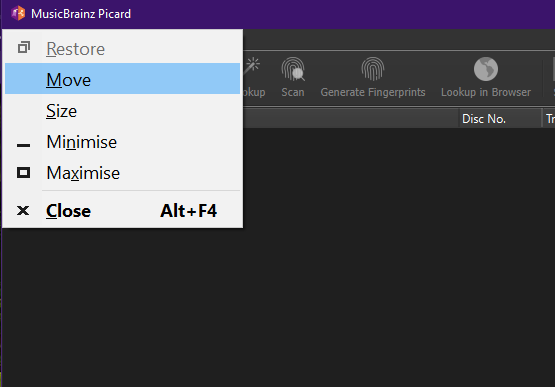
ALT+SPACE will bring up the menu in top left corner.
Then click M (for move)
Now use the cursor keys.
Either hold RIGHT or LEFT down and see if the window appears.

This is the ancient old Windows 3 menu still hidden. And using the keyboard to select it, you can then press M to select the move, then literally drive the window around the screen. Only problem is you need to guess which direction you need to push the window… so this may just make things worse.

I’m on Windows 11 and there is no icon that shows up in the task bar.

Edit: I tried using the normal, the portable and I also tried downloading through the Microsoft Store to which the Microsoft Store gave an error

If it is appearing in Task Manager, select it and End Task.

Open file explorer. Type %APPDATA% into the address bar. Find the MusicBrainz folder. If there is a picard.ini in there, rename it to notpicard.ini

Will it start now?

I meant to say it shows up in task manager, it does not show up in the taskbar, only in the task manager

1 Like

I have 2 different files one picard.ini and a picard.ini.synclock. renaming or deleting picard.ini will simply create a new one when trying to launch it again but it keeps happening

I suggest that you have a look at the Troubleshooting portion of the documentation, which might give you some other things to try. In particular, I recommend trying to start from the command line with the --no-plugins option. If it still doesn’t work, then I suggest following the steps in the Getting Logs in Case of Crashes section, which might provide some additional information to help identify the problem.

1 Like

The point of that test was to see if it was something in the picard.ini causing the crash.

If no icon is showing up on the taskbar, and you can’t find it with ALT+TAB, that sounds to me like it is failing to start fully. Not even getting to the point of registering a window to show.

  • I there anything unusual about your PC?
  • What AV is it?
  • How old is the install?
  • It’s not Windows “S” edition is it?

I’m not a dev, but used to troubleshooting computer issues. So many people run Picard without problems on Windows OS versions that I am trying to spot what may be different with your PC.

  • Will Picard work in Safe Mode?
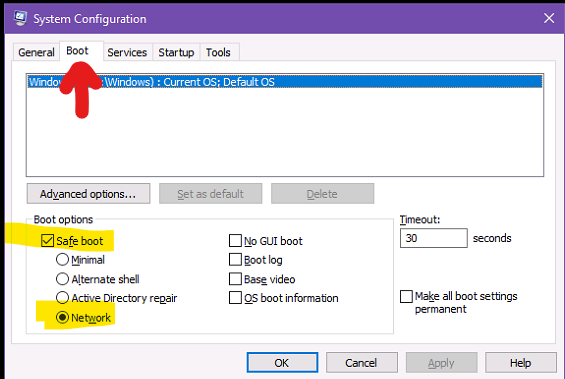
    To start in Safe Mode, type msconfig in the search box and start it up
    Go to the Boot tab
    Under Boot Options Tick Safe Boot and Network.

Hit OK and restart the computer

This will start the PC without anything else in the way.
Try Picard - does it start now?

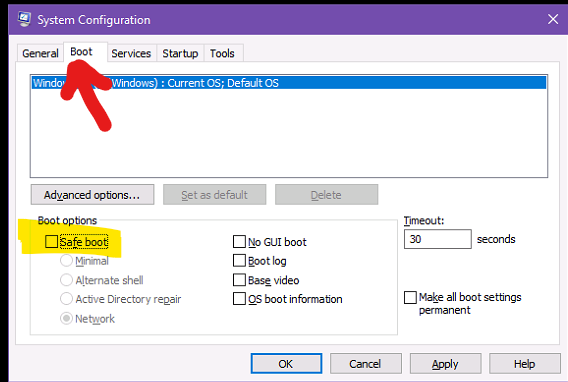
To get out of Safe Mode, again type msconfig in the search box and start it up
Go to the Boot tab
Under Boot Options REMOVE the tick from Safe Boot


Now restart back to normal.

Well besides being a Teclast laptop it is a fairly normal computer.

  • Windows 11 Home 25H2
  • I only use Microsoft’s Windows Defender
  • By the install you mean Picard? or the Windows build? (if Picard I just installed it 2 days ago for the first time and already re installed multiple times) (For Windows it says installed on the 25th of November of 2025 and the build is 26200.7623) I have not had any problem with other apps

As for safemode I am going to try it still

None of that works. The app ain’t crashing if I run it and do nothing Picard’s Task Manager process will stay on using Memory. But the GUI will never load. I already did the debug and I already shared it here in the original post

Weird… a normal boring nothing special laptop. This should “just work”.

Random sideways question - as the last line in the log mentions the QMediaPlayer, does audio work on the laptop?

I’ll leave you with the devs to see what ideas they have. If nothing comes up we could try some other laptop checks.

I’m one of those, but to be honest, I’m rather clueless right now. Picard seems to get rather far with the initializing. The log shows as last entry that it is setting up the player toolbar, which happens when the main window gets created. Shortly after it will construct the main window layout and finally show the window. Unfortunately Picard does not log anything after setting up the player and showing the window, so I don’t actually now if the “window.show()” is being called or not. That’s not something we ever had issues with.

Just a shot in the dark, because the player is the last thing being logged: Can you start Picard with the --no-player parameter?

Actually please try to start Picard from command line with the following parameters:

“C:\Program Files\MusicBrainz Picard\picard.exe" --debug --no-player --no-plugins --no-restore

This disables the player, the plugins and restoring the window sizes / positions from the last run.

1 Like

Also, checking the Error and Warning categories show 0 logs on them, only the debug window to which is what the paste bin shows

Never heard of QMediaPlayer nor is installed on this computer but yes audio does work just fine.

Hey that actually did it.

went to debug window and this is the log:

(Can’t post more than 10 links so I am gonna use Pastebin)

QMediaPlayer is the built in one from the Qt package they build with.

Yay!! :partying_face: Now drop each of the arguments one by one until you find which one is needed. Keeping --debug so any issue can get detailed.

One of --no-player --no-plugins --no-restore held the magic and blocked the lockup.

1 Like