I’ve finally started a project I’ve wanted to do for years. (skip ahead to the 1st main current goal below if you want). I have music files going all the way back to 2002. I want to create a single library of all my music from all time until now. They’ve been stored from multiple backups I’ve made throughout the years, many overlap.
I’ve done a lot of the hard work already. I’ve managed to remove most obvious duplicates with the same file sizes, truncated file names, that sort of thing). There were a lot. These didn’t all come from the same source over such a long amount of time. I’ve moved all the remaining tracks to a single large folder. There are 1379 total music files.
1ST MAIN GOAL atm. I want to add metadata to tracks that don’t have any. I’ve isolated those down to 434, and placed them in a subfolder. That’s roughly 1/3 of the total, the other 945 that DO have metadata sit in the folder above.
I’m new to MusicBrainz Picard. Never done this sort of thing.
My ultimate goal at the end is to create a music library that works in JellyFin.
There’s no folder structure at this moment. I figured I could try to focus on adding metadata to the 434 files lacking any - before doing anything like that.
Like I said, I’ve already put those into their own subfolder. Currently E:\ALL_MUSIC\NoMetaData. Some are common pop songs that certainly have metadata, some are obscure tracks that probably won’t.
How would you start this process? A light hand-holding tutorial?
Huge, HUGE thanks in advance for any help getting this! It will be a huge achievement.
I have never done anything like this so the following is at best a guess.
Firstly, Picard is primarily designed and setup to match entire albums, so you probably need to adjust settings and adopt a different workflow that you would for Albums.
You also need to decide whether you want to store only track information, and leave out Album information (like album name or track number), or if MB & Picard give you metadata for the track as part of an Album rather than a single or Non-Album Track (NAT) that you keep that metadata.
Picard settings you may need to change
In Fingerprinting turn on AcoustId. You may need to download fpcalc. You shouldn’t need an AcoustID API Key unless you want to submit AcoustIDs
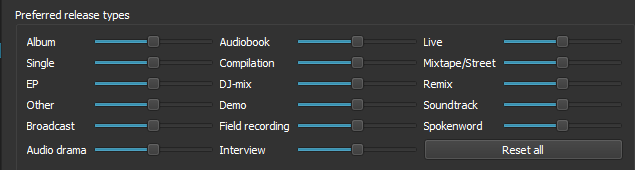
The sliders in the Metadata / Preferred Releases - to prioritise singles, NATs over albums etc. You know your music better than me, so make a guess - and you can tweak them later.
You may want to adjust the thresholds in Advanced / Matching - but don’t put them too low otherwise you will increase the risk of Picard matching to the wrong track. I would leave them where they are to start with, and then lower it a bit for tracks that don’t get matched.
In General you should disable “Automatically cluster all new files” and probably enable “Automatically scan all new files”.
Probably several others I haven’t spotted.
Workflow
You should probably use the Scan and Lookup workflow rather than the Cluster and Lookup workflow.
You probably should take a backup copy before tagging in case you get it wrong.
You will need to set up your file renaming root location to a new directory so that you can see what has been tagged and what hasn’t and set up the filenaming script to whatever style you want.
Load the 400+ files.
Select the 400+ files in the left panel
If you haven’t enabled automatic scanning, click Scan to generate Acoustids for them.
Once the scan completes, click Lookup.
Files found will be moved to the right hand panel and can be quality checked and saved.
Files remaining in the Left Hand panel will need options to be tweaked or may need manual location.
Gotta go out now, so this is all I have time for. Hope it helps.
Work in smaller batches so you can check the results. The smaller the batch, the more manual checks you make, the more likely you’ll get the results you want.
You can do this in few hours. Just drag & drop it to Picard and do the Scan option for fingerprint. It will probably find most or all of them, including obscure ones.
Picard options are not that important for the start (standardized artist names, file name patterns etc.) as you can change that easily any time given that you have only around 1.5K files (extremely small archive, by comparison I have 50K ~ 1 TB and most hoarders would consider it not that big).
So, identification is your only goal now. Once Picard identifies them, eyeball that is songs in release match (see if all releases have N/N tracks), than hit Save button and continue. Do this for every single one of them as Picard doesn’t notify you on non-perfect hits.
Once you identified tracks, you can play with Picard options - how to store tracks, name entities, size of covers to download etc. You can drag&drop to Picard saved files, it will download it again, update the newest info from the MB and apply your new options. This can be slow, but who cares, as you only click a button and can go watch a movie. Configuring it is a matter of knowledge, patience, taste, goals etc. so it will take time.
Ya, not a hoarder. I’m always impressed because to me ~1400 songs seems like a lot of personal music, but I know a lot of people have quite a lot more.
My main problem is that a lot of the music in my collection is obscure, maybe part of an album, maybe not. Plenty of remixes and compilations, that sort of thing.
Been playing around so far though and seeing progress
Thanks for the information. So question - scan just creates the AcousticID, and lookup is what then goes and searches for the metadata for the track once that’s done?
What does adjusting the sliders adjust exactly? Do they make Picard prefer certain metadata databases over others?
Sorry, one more question, I’ll probably disable clusters, but what’s the tldr of that function?
There’s an interesting issue I ran into with a lot of songs that I presumed didn’t have metadata. 384 of those tracks are AAC files that end with the .acc extention. Guess they do have metadata, it’s just added in a nontypical way since acc isn’t a container, and the tags are slapped on the front of the file. Foobar2000 was recommended, and it shows the art and tags fine. So now I have to see how I can re-package these as proper m4v files with that metadata in the right place. Hopefully there’s an easy way to do this .
Yes. You want to push “compilation” to far left and “singles” and “Albums” to the right. This will make your matches bias towards original releases instead of popular compilations.
Really it depends on what your original sources are. “Lookup” will get good results if you have half decent tags or filenames. Wheras “scan” uses an audio fingerprint meaning you are going to get a match from almost anywhere that track appeared - compilation, original album, single…
Yes (though not different databases). Lookup searches for fuzzy matches based on the metadata it already has and scores each match based on several measures, and one of the measures is the value of the slider that matches the release-group subtype.
Clustering groups files from the same directory together, so that the search function can use the collection of metadata from several files to make a much better guess about the release. In other words its for albums and not single tracks. For example, the number of tracks and their length is a pretty good indicator of what the correct releases might be. As is the directory and file names.
AAC files are Apple designed Advanced Audio Coding music files and can have APEv2 tags embedded but adding these moves you away from strict conformance with the AAC spec.
.mp4 and .m4v files are generally used to indicate video files. Do you mean .m4a? These all use mp4 tags.
APEv2 and MP4 tags are much more limited than the ID3 tags used in .mp3 files. The list of supported tags are much smaller, and freeform tags are not supported.
Obviously different music file formats store the music differently too - and some (e.g. FLAC) give better sound reproduction than others - and obviously the bitrate you use within these formats also makes a huge difference to the audio reproduction.
TL;DR The file format you use has a BIG impact on both audio quality and tagging ability.