Windows is getting easier and easier.
After all, humanity is gone…
Agentic AI refers to autonomous AI systems that can perceive, reason, plan, and act independently to achieve complex, goal-oriented tasks with minimal human oversight, differentiating from traditional AI by proactively creating and executing multi-step action plans using tools and continuous learning. These systems, often built around Large Language Models (LLMs) and multi-agent frameworks, handle tasks like code writing, complex workflow optimization, and data analysis by interpreting context and adapting to new information.
Core Characteristics
- Autonomy: Acts independently to achieve goals, not just follow prompts.
- Goal-Orientation: Breaks down high-level objectives into actionable steps.
- Reasoning & Planning:
Uses LLMs to understand context, plan actions, and select tools
.
-
Tool Use: Accesses and utilizes external tools (APIs, databases, code).
-
Adaptability: Learns from feedback and experiences to improve future performance.
How it Works (Perceive-Reason-Act-Learn Loop)
- Perceive: Gathers data from its environment (sensors, APIs, user input).
- Reason: Processes data using LLMs to understand context, form insights, and plan actions.
- Act: Executes steps, like making API calls, writing code, or searching the web.
- Learn: Stores outcomes and uses them for continuous refinement and better future decisions.
Key Differentiators from Traditional AI
- Traditional AI: Responds to commands, follows pre-defined rules, requires step-by-step guidance.
- Agentic AI: Proactive, sets its own path, adapts to change, and handles complex, multi-step processes autonomously.
Examples & Applications
- Workflow Automation: Optimizing schedules or business processes dynamically.
- Complex Problem Solving: Writing and debugging code, resolving support tickets.
- Multi-Agent Systems: Collaborating agents (e.g., an author agent and a critic agent) to refine outputs.
Windows application update
Use CMD or PowerShell as Administrator.
Write winget upgrade
You will receive a list of outdated applications.
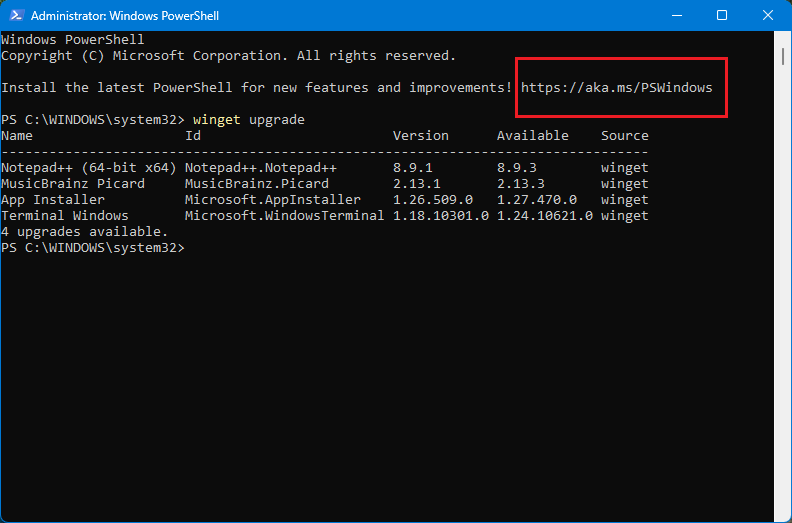
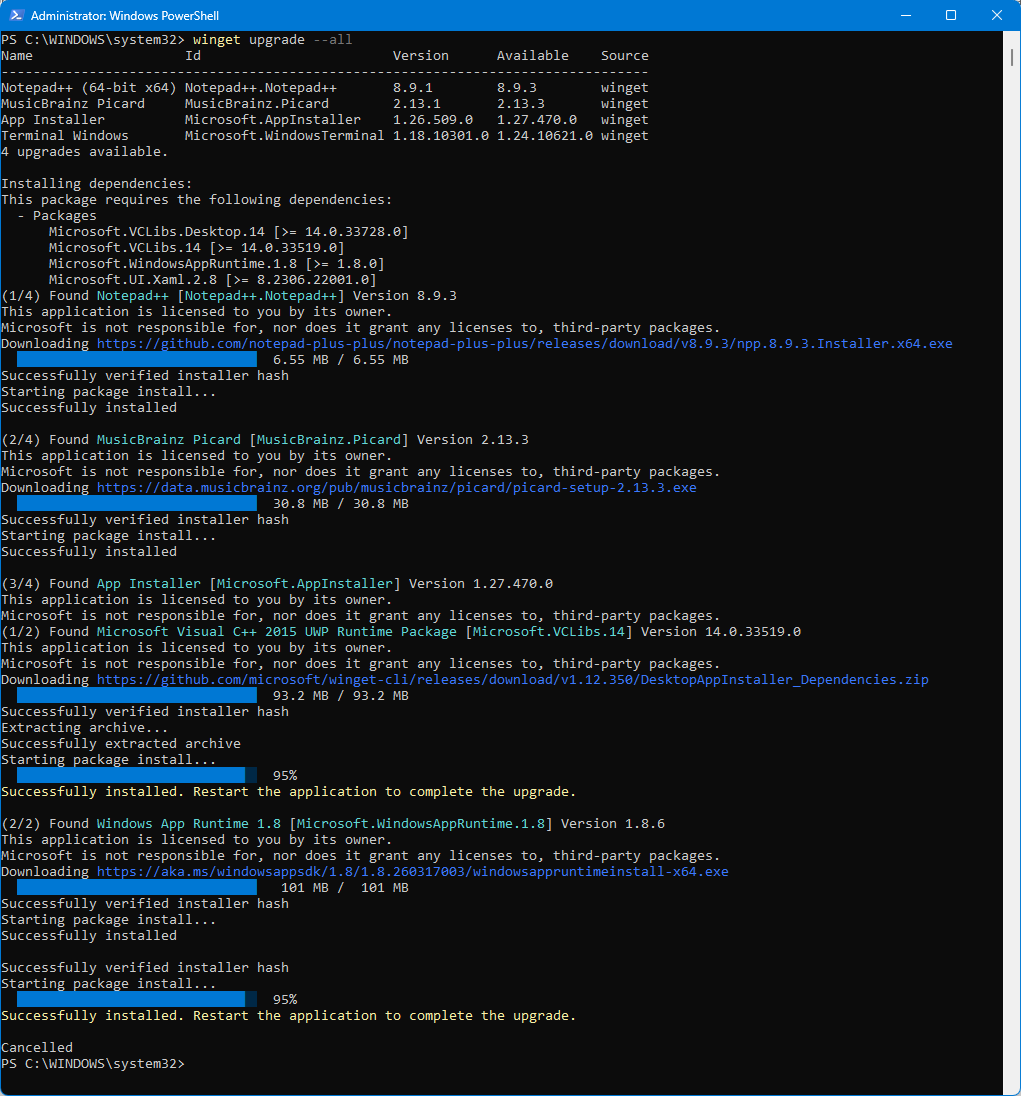
Then write winget upgrade --all
The update will begin.
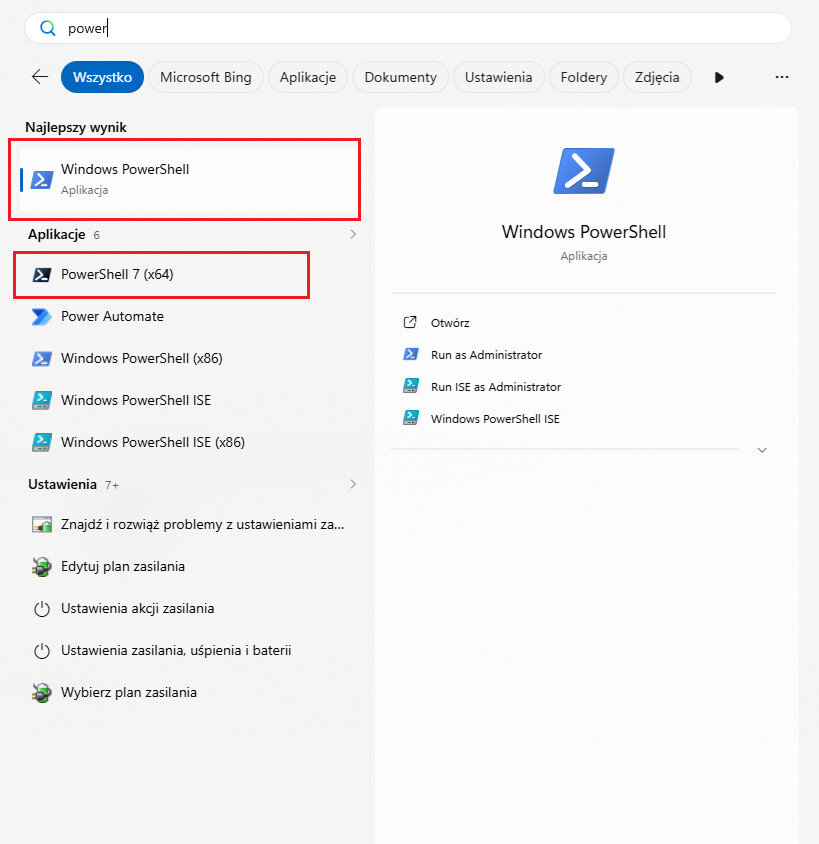
You can then update your system PowerShell from version 5 (blue icon) to version 7 (black icon).
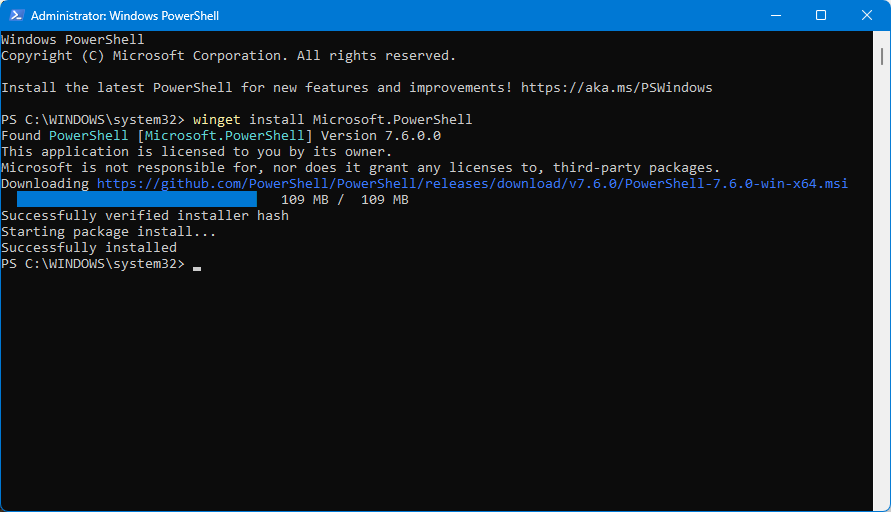
Visit the website https://aka.ms/PSWindows
or write winget install Microsoft.PowerShell
You can also use the Terminal program.
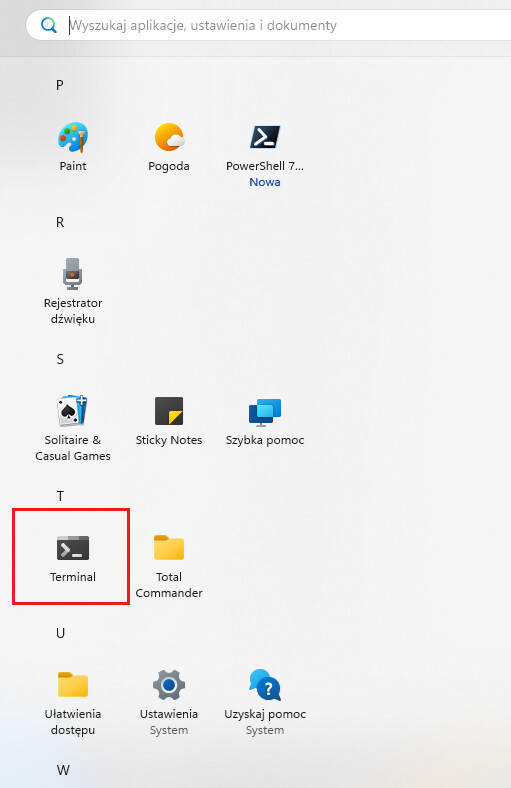
By default, it uses the old PowerShell v5 (blue icon). You need to get to Settings
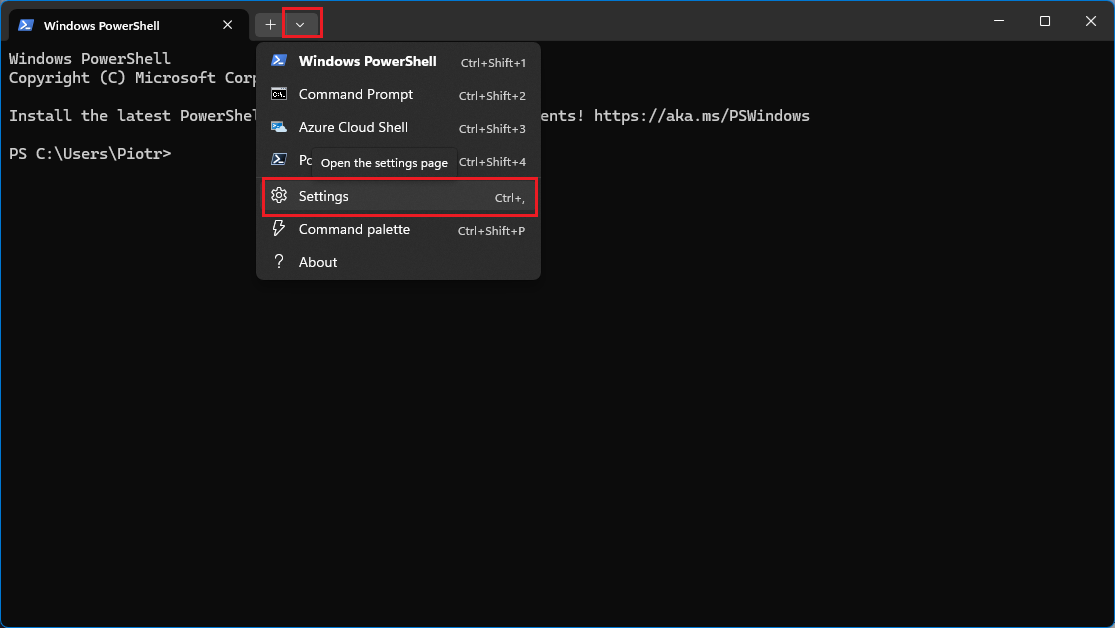
and select the default program.
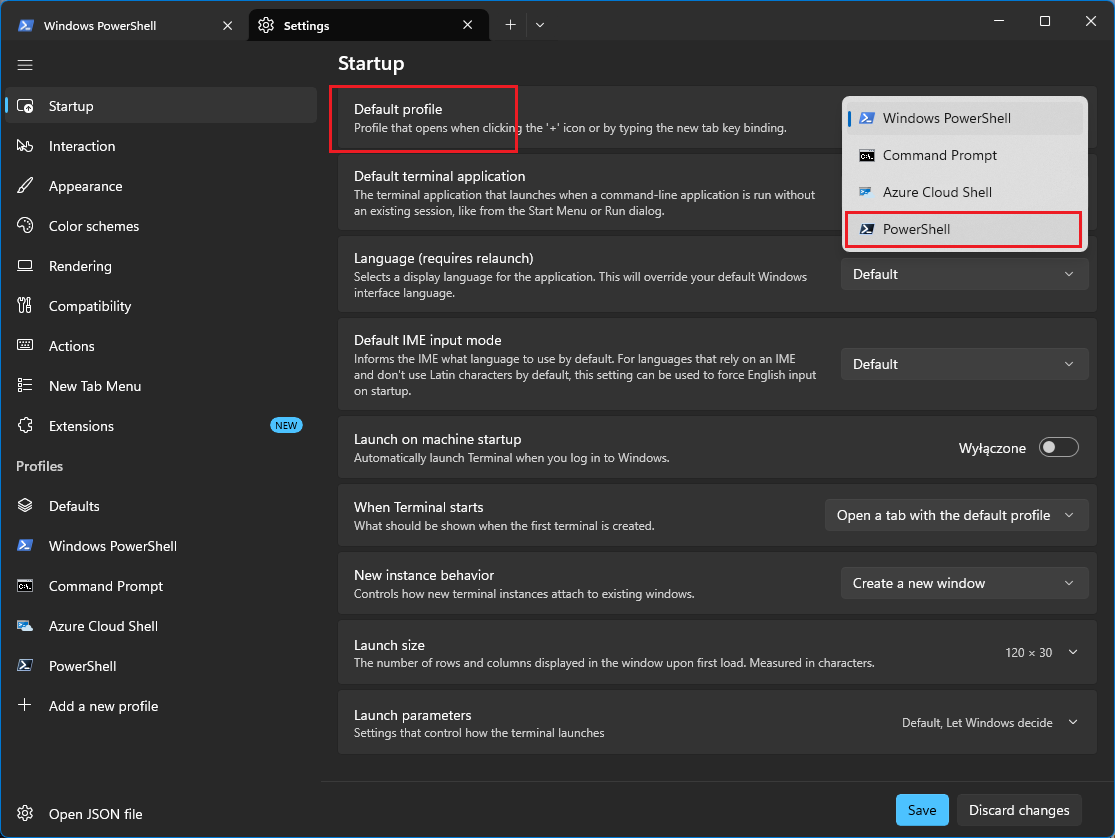
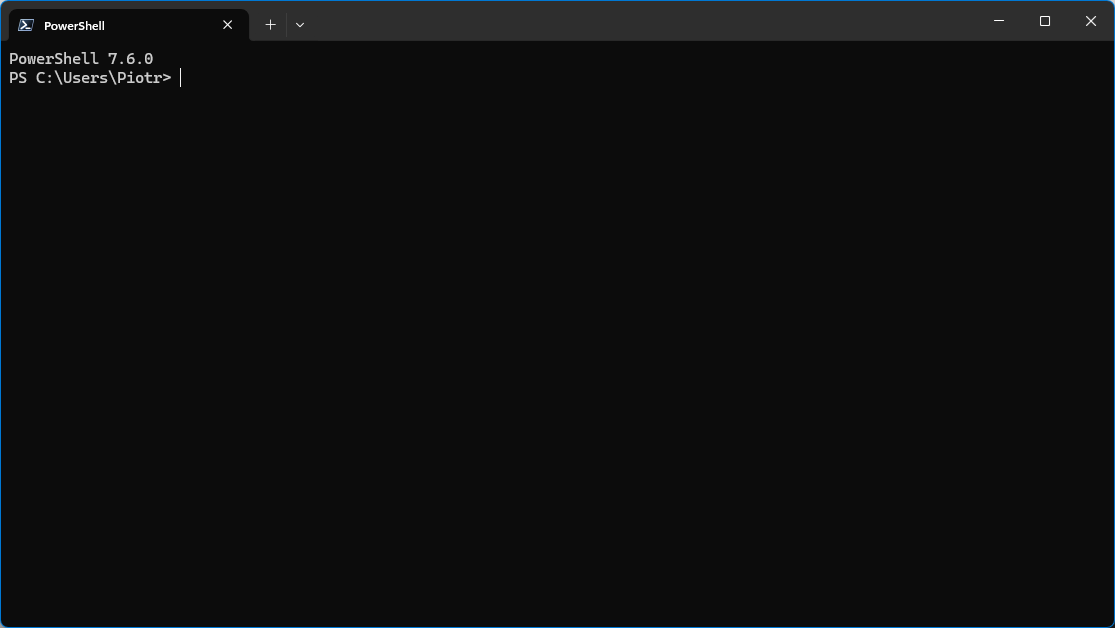
Now Terminal will run the latest PS.
A few commands entered in CMD to check network connection:
ping example.com
tracert example.com
pathping example.com
nslookup example.com
netstat
External WinMTR alternative - equivalent to Linux mtr
AutoHotkey (AHK) is a free and open-source custom scripting language for Microsoft Windows, primarily designed to provide easy keyboard shortcuts (or ‘hotkeys’), fast macro-creation, and software automation, to allow users of most computer skill levels to automate repetitive tasks in any Windows application. It can easily extend or modify user interfaces (for example, overriding the default Windows control key commands with their Emacs equivalents).
https://en.wikipedia.org/wiki/AutoHotkey
Documentation
https://www.autohotkey.com/docs/v2/index.htm
Personally, I use the mouse.ahk file,
MButton::return
XButton1::return
XButton2::return
which disables the extra mouse buttons (without using bulky mouse apps).
It just needs to be compiled using Ahk2Exe.
A script for deleting unnecessary files in Windows.
Paste this code into Notepad and save it as clean.ps1.
# Requires administrator privileges
if (-not ([Security.Principal.WindowsPrincipal][Security.Principal.WindowsIdentity]::GetCurrent()).IsInRole([Security.Principal.WindowsBuiltInRole]::Administrator)) {
    Write-Warning "Run this script as Administrator!"
    break
}

# Paths to clear
$targets = @(
    "$env:TEMP\*",
    "C:\Windows\Temp\*",
    "C:\Windows\Prefetch\*",
    "C:\Windows\SoftwareDistribution\Download\*",
    "$env:LOCALAPPDATA\Microsoft\Windows\INetCache\*",
    "$env:LOCALAPPDATA\Microsoft\Windows\INetCookies\*"
)

# Function to calculate folder size (in bytes)
function Get-TargetsSize {
    $totalSize = 0
    foreach ($path in $targets) {
        $folder = $path.Replace("\*", "")
        if (Test-Path $folder) {
            $size = (Get-ChildItem $folder -Recurse -ErrorAction SilentlyContinue | Measure-Object -Property Length -Sum).Sum
            if ($size) { $totalSize += $size }
        }
    }
    return $totalSize
}

Write-Host "Calculating initial size..." -ForegroundColor Cyan
$initialSize = Get-TargetsSize

Write-Host "Cleaning files..." -ForegroundColor Yellow
foreach ($path in $targets) {
    Remove-Item -Path $path -Recurse -Force -ErrorAction SilentlyContinue
}

$finalSize = Get-TargetsSize
$savedBytes = $initialSize - $finalSize
$savedGB = [Math]::Round($savedBytes / 1GB, 4)

Write-Host "`nOperation completed!" -ForegroundColor Green
Write-Host "Space saved: $savedGB GB" -ForegroundColor White
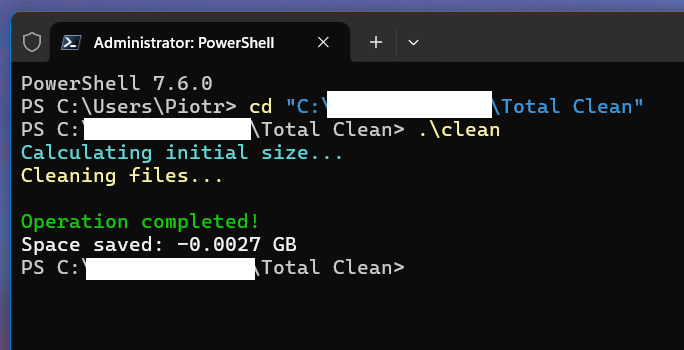
Run it in Powershell as administrator.
Professional Windows Service Management Tool - Safely disable unnecessary background services in Windows 11. Features intelligent service detection, safety checks, and comprehensive reporting for optimal system performance.
Task Manager on my computer after optimization.
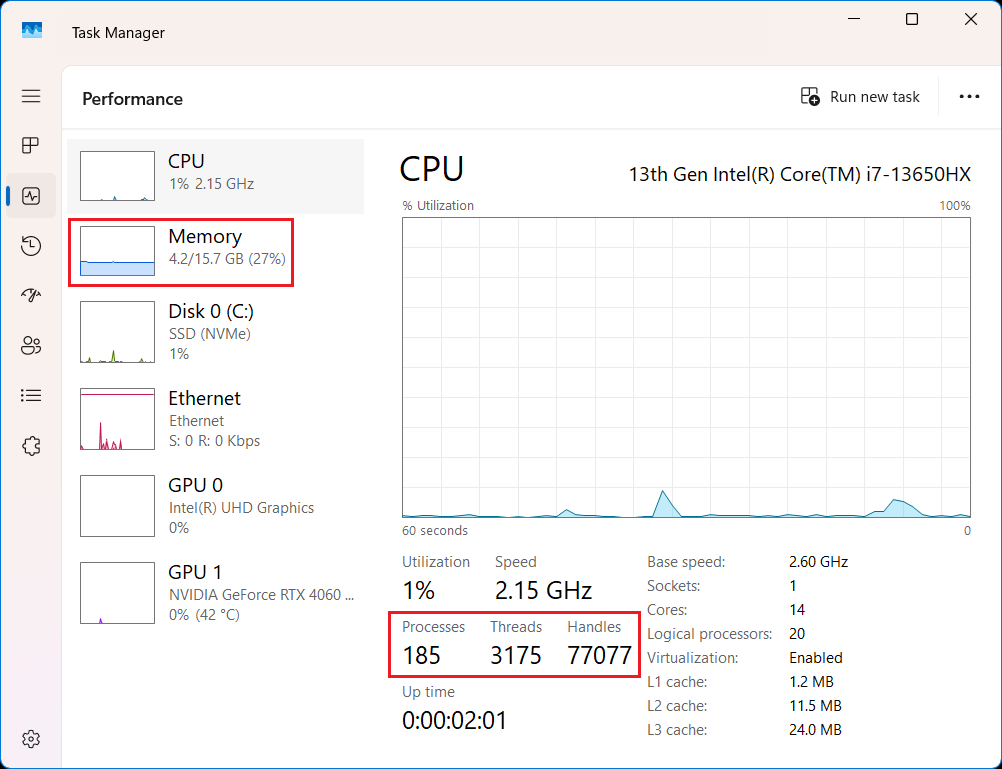
Unfortunately, I forgot to take a screenshot before optimization, but you can compare your results with mine.
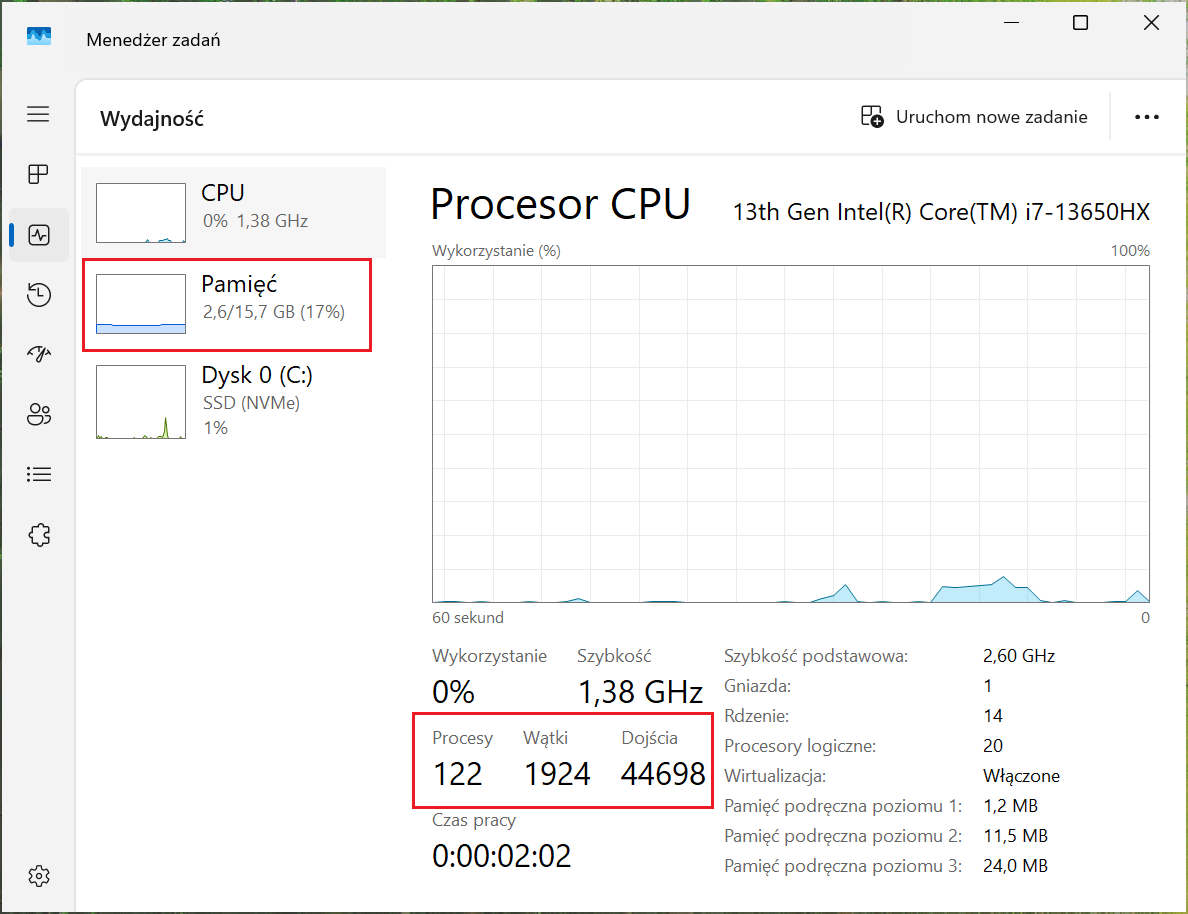
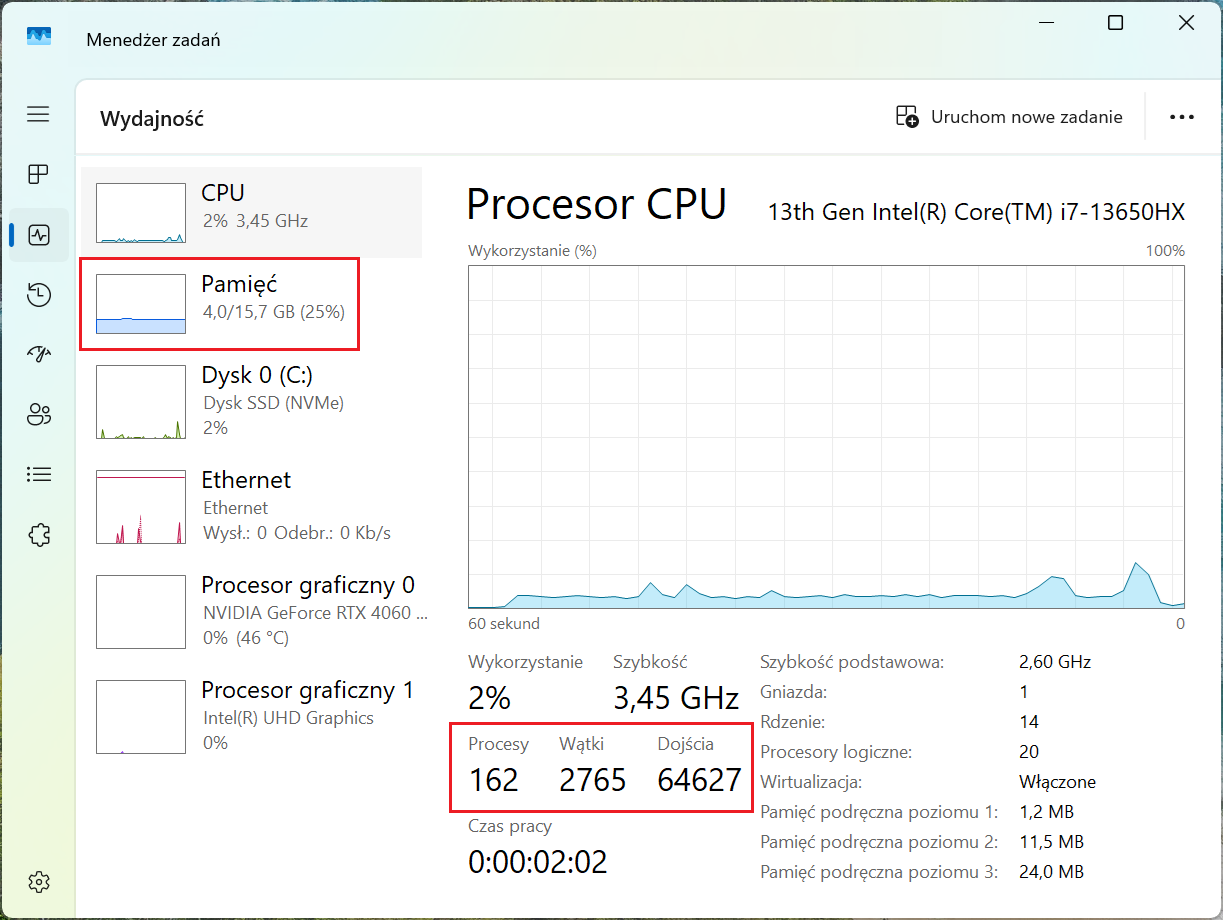
You just need to wait about 2 minutes for the system to calm down.
I have new screenshots from before using Windows normally.
After a fresh Windows install without Windows Update.
After Windows Update and the Microsoft Store. I like to stay up-to-date, even with Notepad.
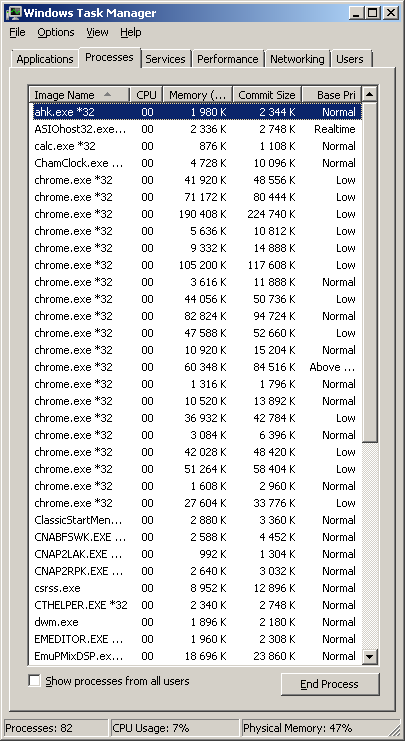
In the meantime my Server 2008 R2 has 82 processes and uses about 4 GB or RAM without a swap file, has many applications open including a web browser with 10 tabs, and I can take a screenshot that is 15 kB.
1 Like
That’s good.  You don’t have to buy more computers (e-waste). Jesus and I appreciate that.
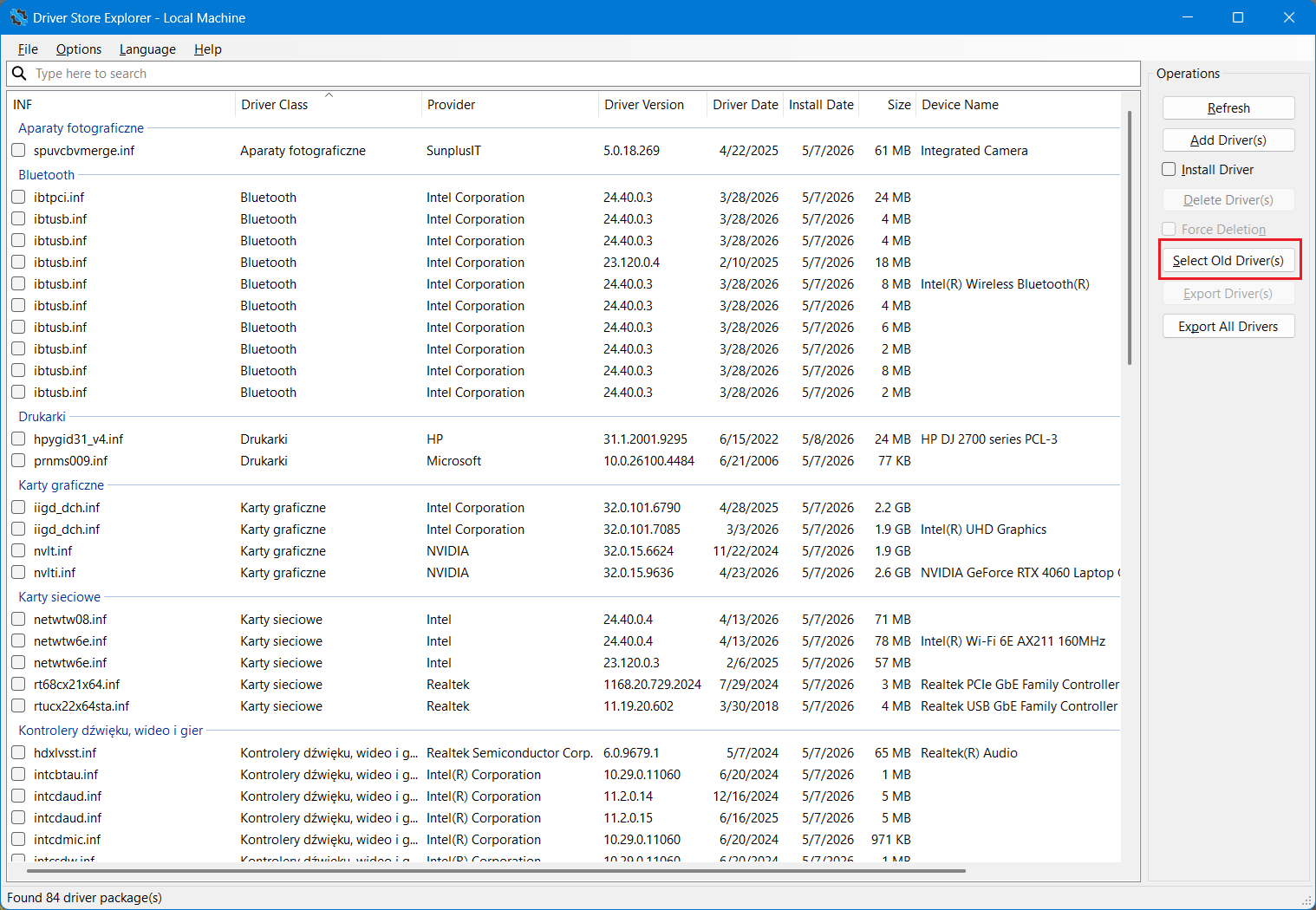
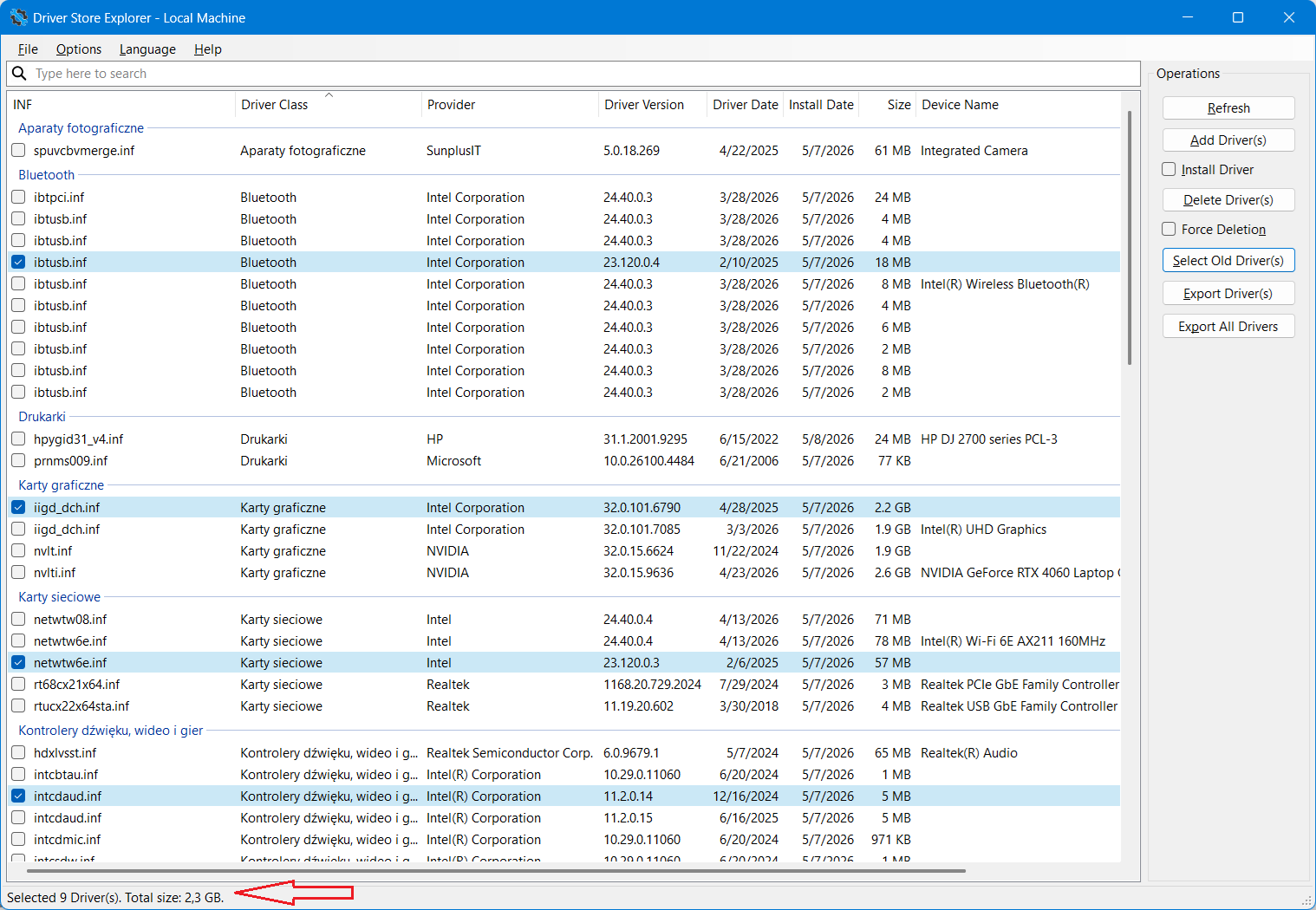
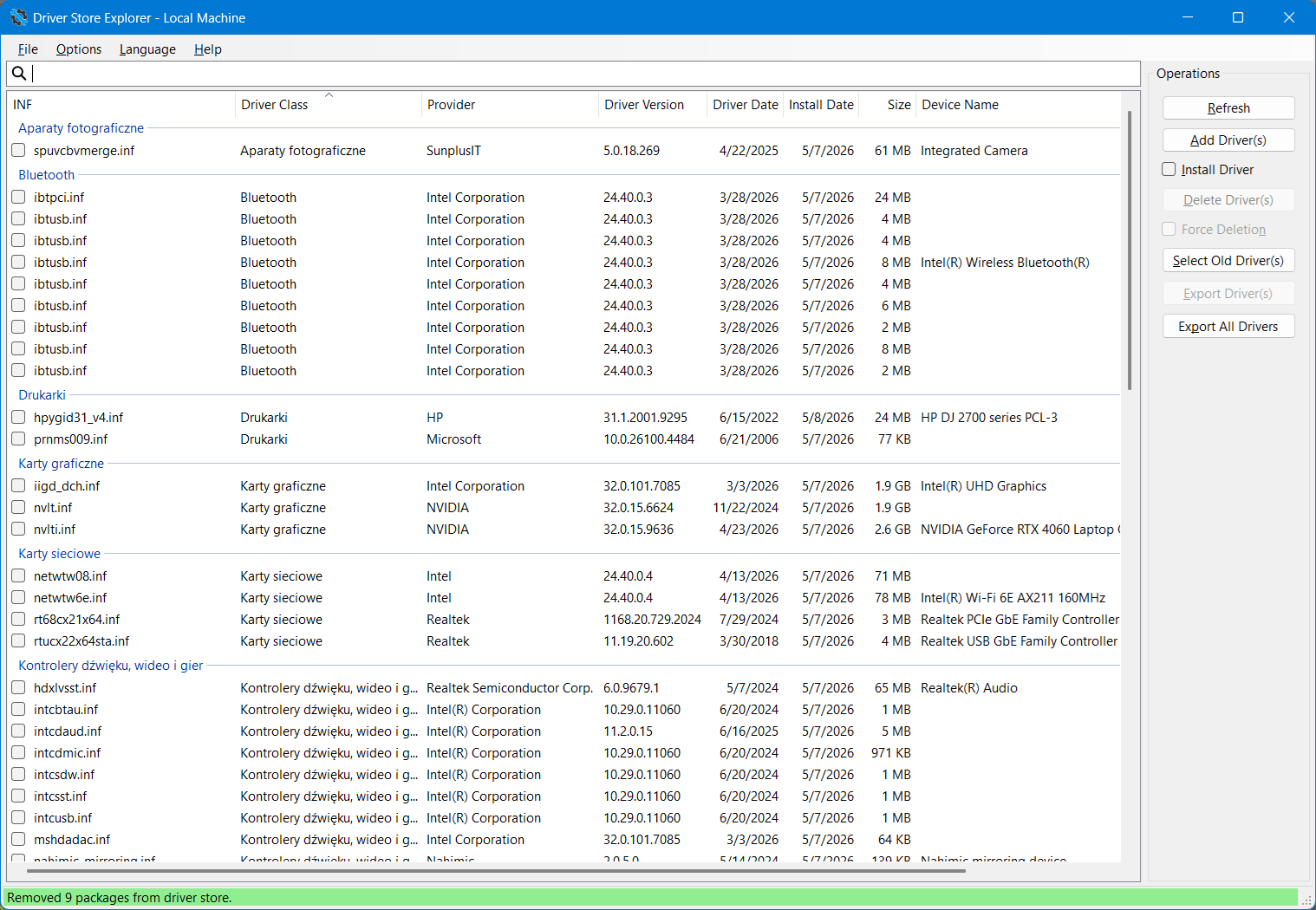
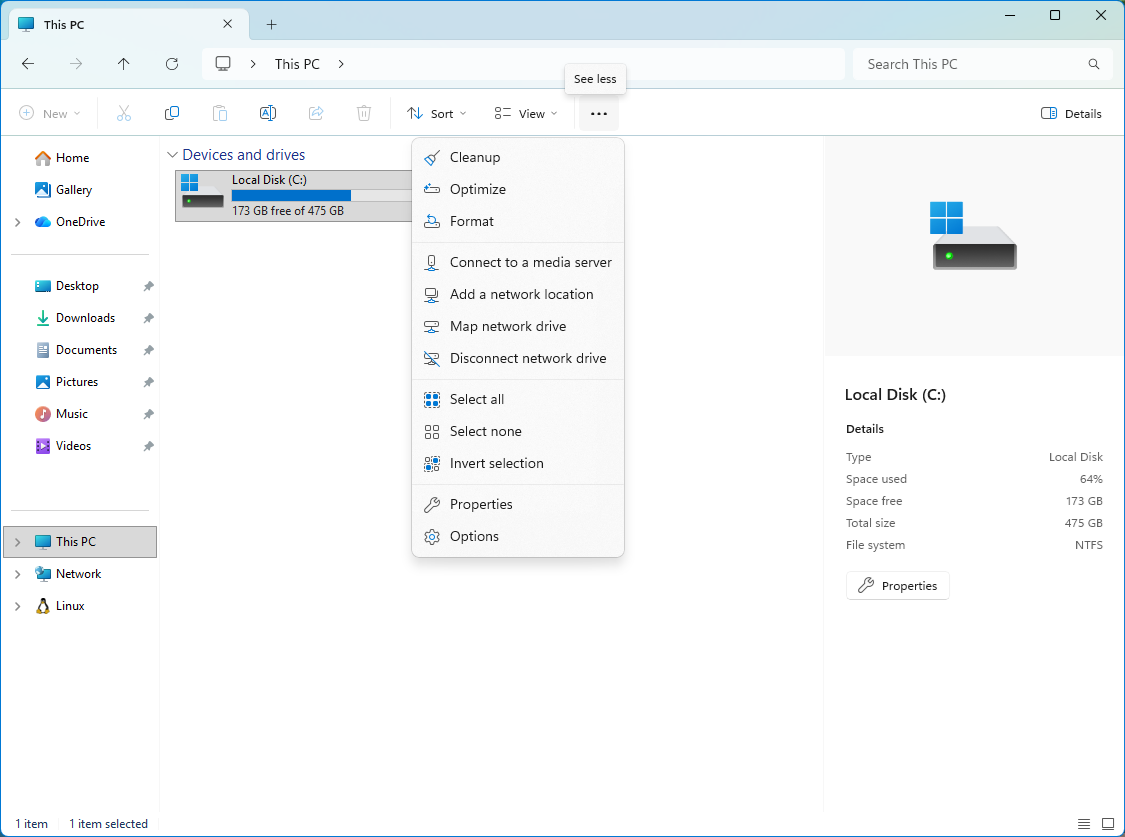
How to safely delete unnecessary files from a directory “C:\Windows\System32\DriverStore” that takes up 10GB in my case.
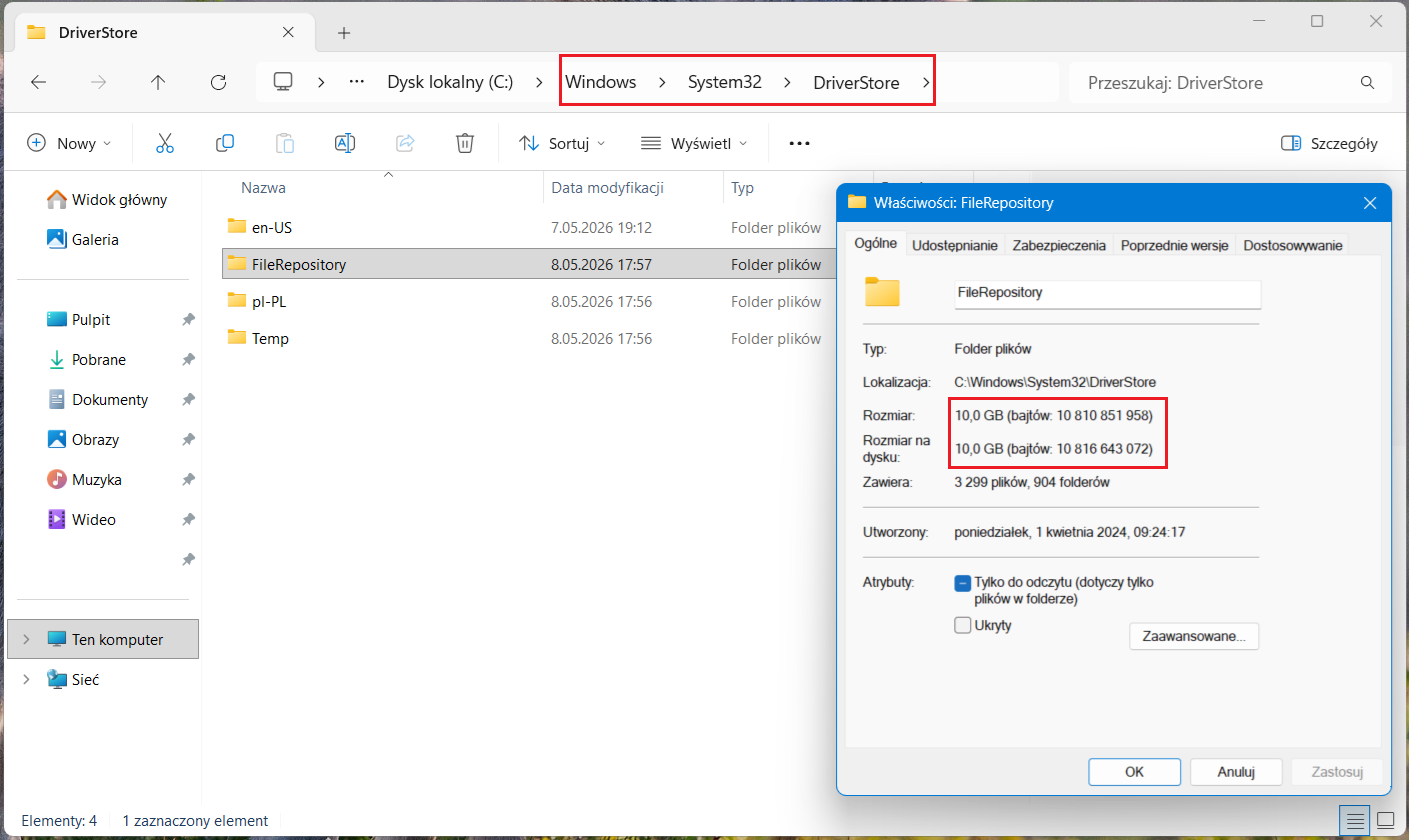
The answer is Driver Store Explorer. Manually deleting files is not recommended.