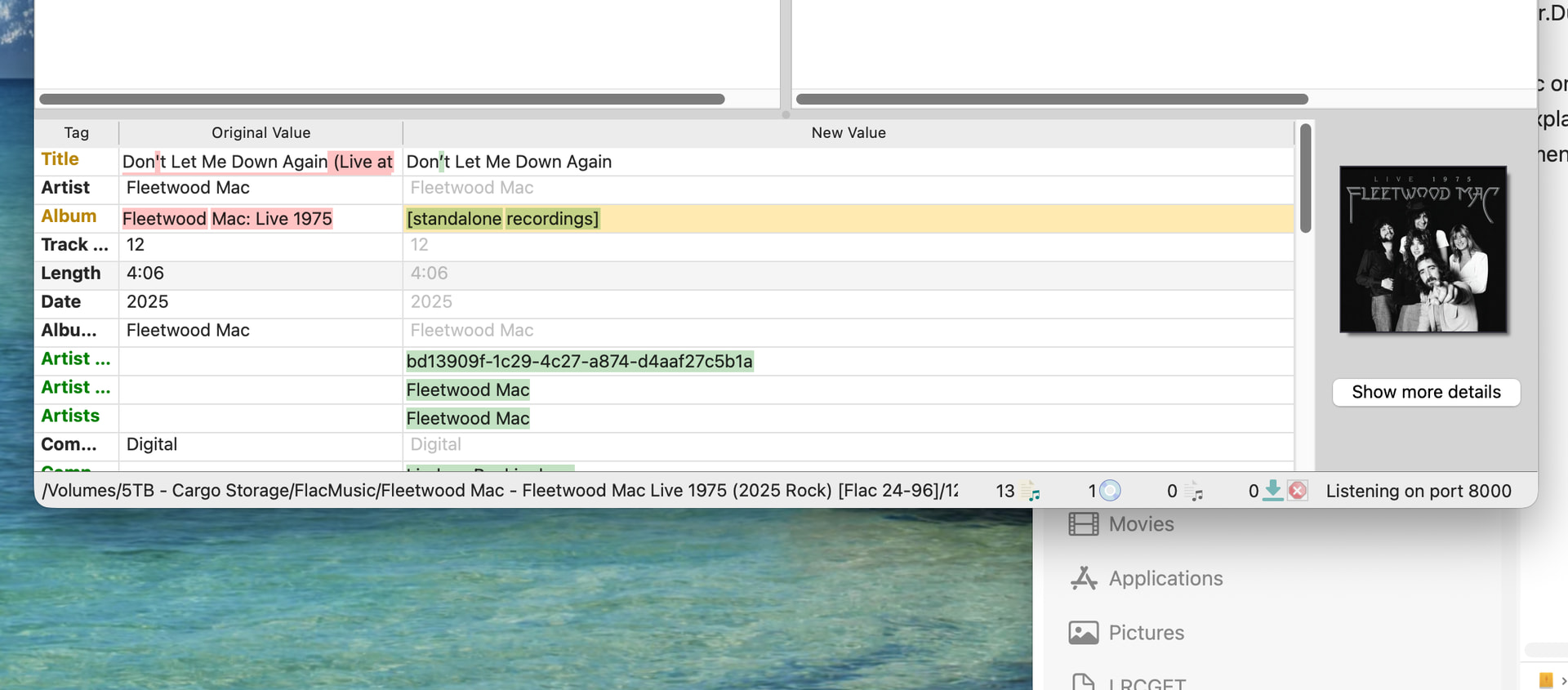
Picard is changing many of my album name field’s such as “Fleetwood Mac Live 1995” in this screen shot example to replacing it with "standalone recoding ". I have spent hours having AI help me to try to fix this, where I assume it’s some setting in preferences.
I am already using the look up button and in it’s even showing this problem in the lower pain under the original value and the new value fields, even just when loading the album into Picard. Does anyone have a fix? Thanks so much
Your album name is “Fleetwood Mac: Live 1975”
But you are attempting to match to “Live 1975” which is likely why it fails.
Paste : " ba1cc278-a807-48b6-9e30-7c20a801a636 " in the search box it will find it.
Assume the album is this one:
Also I noticed from the status bar you may have your music all in one folder. Recommend to make sure you “Cluster” the albums before “Lookup” to have more chance of a match.
This is my third attempt at reply… but you keep deleting the thread… 
2 Likes
@russelmessick
But why use “Lookup”? You just add a directory to Picard, and it automatically moves the files from the left panel to the right panel and fills in the tags.
1 Like
@russelmessick
Tell us which solution helped you. We’re curious.
Ok I’ll try that. But this is happening to about half my albums. Will that paste work with all albums? I don’t know if this album was the best example. Do I need to do each album separately instead of albums in batches? So I assume one album then cluster it then paste that into the search.
Sorry for deleting my posts, but I kept messing up what I was asking and I didn’t think its was clear enough to understand. Thanks so much for the help.
Check if your files have a recording_mbid tag. If they do, try this:
- If the file appears in the right side when you drag it into Picard, drag it over to the left side.
- Delete the recording_mbid tag, and save the file (Ctrl+S).
- Now click Look Up (or Lookup in Browser if you want to choose from a list), and it should find the album instead of just standalone recording.
1 Like
No. That is the MBID of the specific album you were looking for. It only works for this one album.
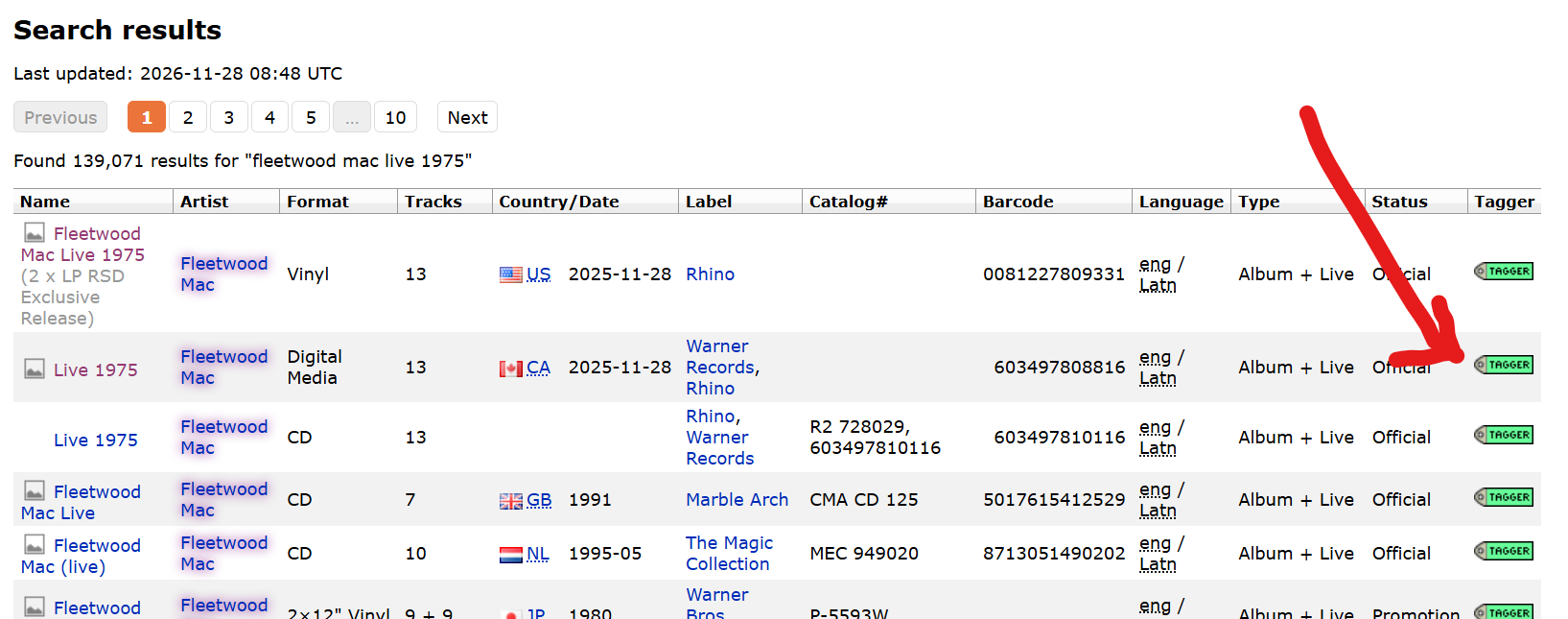
What I basically did was highlight the bad track match, use the Picard button “Lookup in Browser”, searched around for the correct album, then click the Green “TAGGER” button on the website that pushes data for that album back to Picard. This lets you then assemble your tracks onto that correct album.
I manually short cut that process by copying the MBID from the album you wanted.
You could have also typed the album title into the Search box at the top right and again you would have hit a page of results. From here you could have found the correct album and hit the Green tagger button to bring it back to Picard
An alternate way you could have done this is manually edit the album title to “Live 1975” instead of “Fleetwood Mac: Live 1975” and the match is more likely to have happened.
Other bad matches will have different reasons. This is why it is often best to sort through your albums with two folders - a “before” and “after”. You can then move the completed albums into the “after” folder so you narrow down the albums to check.
And ALWAYS backup before you start a mission like this. Picard is good, but it can’t get everything perfect.
1 Like